How I’m Using Adobe Bridge
Mindy Wagner, Former Design Director
Article Category:
Posted on
When I finally got around to exploring its capabilities, I found that Bridge can do some cool (and very useful) things. It's a speedy visual organizer. And, unlike the version that shipped with CS2, it doesn't seem to steal all my RAM unless it's trying to render thumbnails for a big set of EPS or PSD files. I've only been using it about a week but I keep catching myself saying, "Well in Bridge, you can..."
Here are several ways I'm using it:
BROWSING IMAGES
This is Bridge's primary purpose, and one that is handier than I would have thought. With it, I can browse through image folders quickly and easily. And unlike regular system browsing, many Adobe filetypes (including PSD, AI, INDD, PDF and EPS) show fully rendered thumbnails and previews. SWF files don't show up in thumbnails but do play through in the Preview pane. I keep an archive of inspirational screenshots on my hard drive, and I've made this folder a bookmarked "Favorite" in Bridge so it's easy to access. My stock photo library is also a favorite. I can zip through quickly and get a large preview in one click. If I see something I like, I can double-click to open or drag it into Photoshop, Flash, or even Dreamweaver. Based on my personal browsing needs, I've set up a custom workspace that looks like this:
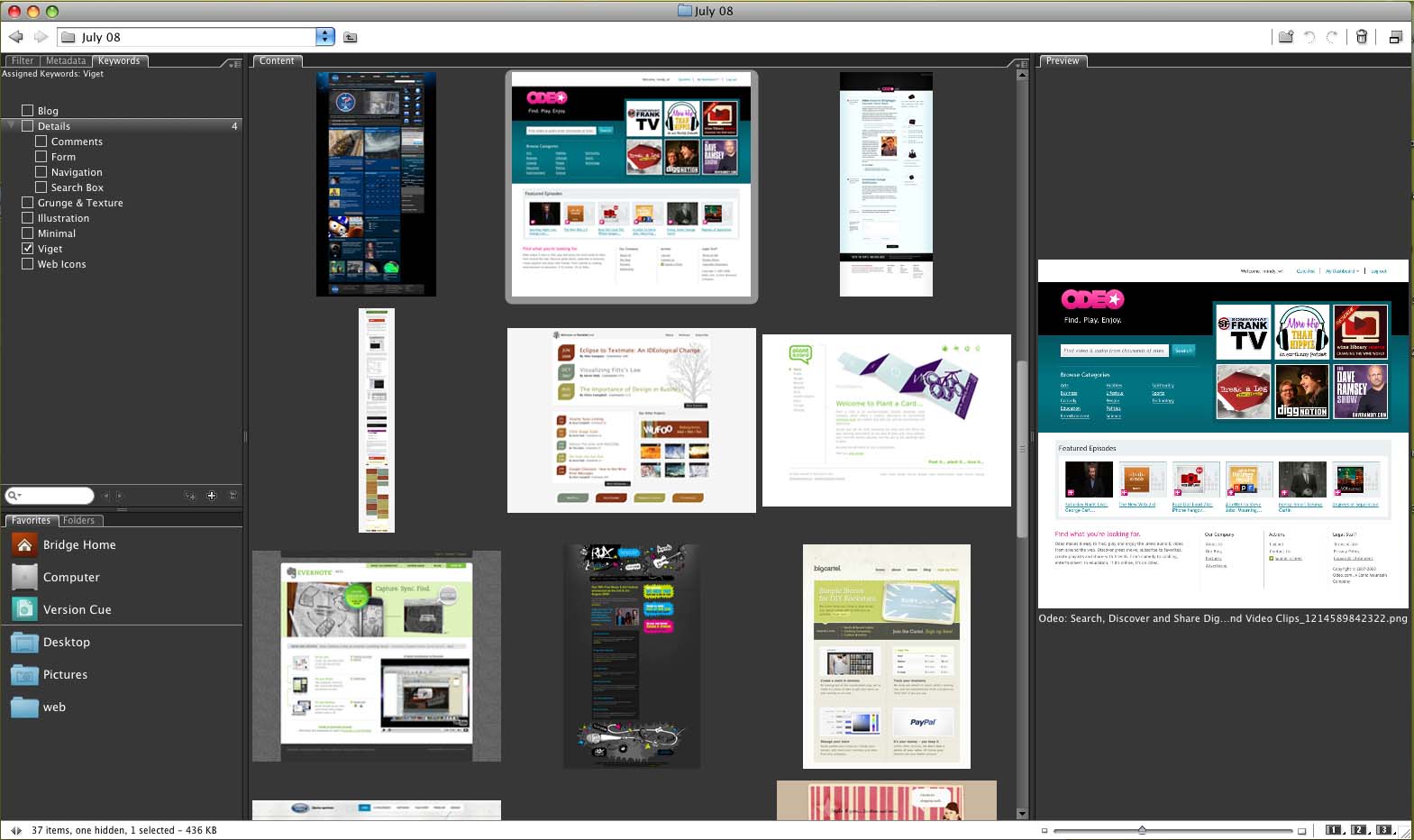
(click for larger)
It's clutter-free for easy visual scanning. I'm a little obsessive-compulsive about keeping things minimal.
In the left sidebar I keep the Favorites and Folders panes. Filter lets you sort your files based on metadata (more on that later). You can put bookmarks to commonly-accessed folders and/or files in your Favorites panel -- I recommend doing this; saves tons of time. If you're looking for something outside of your bookmarks, Folders lets you browse your files the long way.
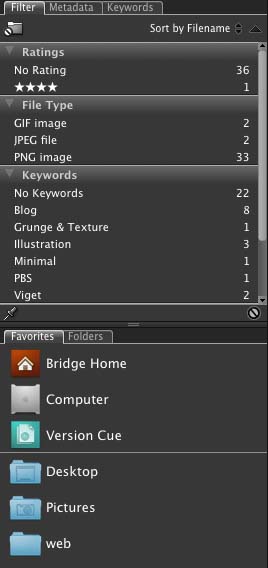
The center pane shows me a streamlined set of thumbnails, and to the right is my Preview window. I've saved this workspace as my default. You can have more than one custom workspace, and can easily toggle between them by clicking the 1/2/3 icons in the bottom right-hand corner of the screen:

Next to that you'll see a slider that lets you adjust the size of the thumbnails on the fly -- quite possibly my favorite feature. Hit Ctrl-T on your Mac to toggle filenames on and off in the thumbnail window for the cleanest look possible.
TAGGING WITH KEYWORDS
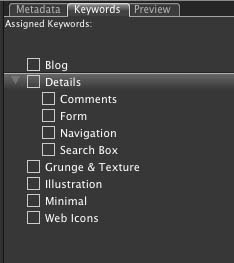
Adobe's Extensible Metadata Platform (XMP) is a labeling technology that allows you to embed metadata into the file right from Bridge. You can add color coding, star ratings similar to iTunes, and hierarchical keywords. I'm currently using keywords to tag my screenshots according to style and type (for example: "grunge" and "blog"). I'm also tagging my work by client and project name. I can easily jump in and filter the thumbnails I'm looking at by selecting these keywords. (Note: Some file types such as bitmap and gifs won't accept XMP metadata. Doh.)
BATCH PROCESSING
Photoshop's batch processing actions are available right in Bridge. So far, I have used it to rename files, resize files, and create automatic contact sheets. It's quicker to process things in Bridge than to fire up Photoshop if it isn't already running. You can find your batch actions by going to Tools>Photoshop>Batch. This will bring up the same dialog box you are used to getting in Photoshop.
FILTERING, SNAPSHOTS
I can imagine all sorts of uses for filters, especially when you start to combine them. Here's an example that is somewhat random but saved me tons of time. We were building an icon library site for internal use and wanted snapshots of each icon set. I used Bridge's filters to weed out the 32x32 png files (instead of previewing the whole range of sizes and filetypes), and then used Mac's built in Ctrl-Shift-4 "snapshot selection" tool to grab a picture of each set in the thumbnail window on a white background. Worked great!
STACKING
Stacking is Bridge's way of grouping files. Stacks can be useful for visually collapsing things such as html files, icon sets, stock photos, or mockups with many revisions. Select multiple files and press Ctrl-G to create a stack. A bubble showing the number of files will appear in the top-left corner of your grouped files, and you can easily toggle them open by clicking it. If you want to change the top image in the stack, you can do so by rearranging the file order.
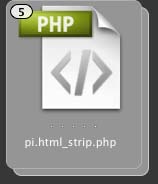
A word of warning: Don't bother stacking files you plan to move elsewhere on your hard drive or server. Bridge won't remember the stack info once the files move.
INTEGRATION AND COMPACT MODE
Here's where it all comes together. When working in an Adobe program such as Photoshop, Dreamweaver, or Flash, you can fire up Bridge right from the toolbar. Just look for the Bridge icon in the top right:
Hitting the Bridge icon will bring up the full window, which gets in the way. Luckily, you can throw it into "compact mode" so that it essentially becomes a small palette window that is easy to access but never in the way. Just click this icon, found at top right:

If that's not small enough for you, click the icon again to make it "ultra compact" -- it turns into a thin bar. Clicking the button one more time will toggle back to compact mode.

DEVICE CENTRAL
Bridge provides access to another oft-ignored Adobe product called Device Central CS3. Select a supported media format (such as an HTML file), select the "Test in Device Central" command, and see how the file should render on a wide range of mobile devices. Within the device profile you'll get a rendered visual skin and info such as download speed and formats are supported. I'm sure there are plenty of things yet to discover, but I'm definitely finding it useful.
Is anyone else out there using Bridge? If so, please share your tips!


