Breaking the Silence in Meetings: A Peek at Parakeet
Ragan Lee, Former Project Manager Intern
Article Categories:
Posted on
The 2025 intern group project prompt was to build a better digital soundboard. In three weeks, we did just that, and it’s going to be available for everyone to use…eventually.
A Need for Personable Remote Meetings
During our first Friday at Viget the interns were introduced to FLF, or Free Lunch Friday. FLF is Viget’s weekly all-hands meeting. But this meeting isn’t just for updates; it is also a chance to connect. Once, pre-COVID, FLF was (mostly) in person. Now, FLF is virtual and spans several time zones, uniting the entire company every week.
FLF lacks the in-person interactions it once had. But, Viget has found other ways to keep FLF meetings fun. Information is shared through engaging slideshows, jokes are cracked in the FLF Slack channel, meals are shared over Google Meet, and sound effects are played across the meeting, adding applause, music, and funny reactions to the call.
Viget started using a soundboard when FLF went remote, back in 2020, in order to add levity to the weekly meeting and create a more engaging environment. The soundboard eliminates the awkward silences that may occur in a meeting filled with mute mics. They make virtual meetings personable. But, while the concept was a hit, Viget was unhappy with the existing options.
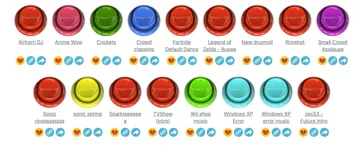
Soundboard websites are outdated. They lack a clean UI. They are disorganized. They are filled with ads. They are unable to easily connect to Google Meet, Viget’s remote connection tool of choice. So the 2025 Viget intern cohort was challenged to create a new and improved solution in just three weeks. We researched existing soundboards, iterated through designs, and crunched to build an entire MVP in our short timeframe. Our final product? Parakeet: A Better Soundboard for Brighter Meetings.
What is Parakeet?
Parakeet is a digital soundboard that allows users to seamlessly play sound effects across a Google meeting. With Parakeet, users can create custom sounds from uploaded audio, play and stop audio, organize sounds with tags and folders, and easily access their sounds without changing tabs.
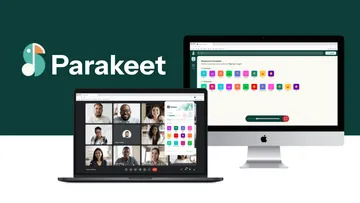
We built Parakeet with working professionals in mind, and plan for it to be available online and in the Chrome Store. Eventually. As the summer and our time at Viget come to a close, we are getting it polished up and ready for launch. Until then, here's a user guide so you can be ready to brighten your meetings with Parakeet.
What Makes Parakeet Special?
As implied, Parakeet differs from current digital soundboards. Typically, soundboards are hosted on websites. There are many reasons for this: easy access, a larger user interface, and more room for features. But websites are unable to inject audio directly into Google Meet. Instead, users have to either share their screen or join as a second user to utilize the board. Due to this, our developers experimented with different technologies, trying to find the best possible solution to our Google Meet integration problem. The answer? Chrome extensions.
Our developer interns, Natalie Dixon and Rhyder Swen, discovered that through an extension, they are able to hijack the microphone stream and inject their own script into that stream. Meaning, sound effects can be heard across a meeting with just one push of a button. However, extensions are small. Packing all of our features into an extension would be impractical.
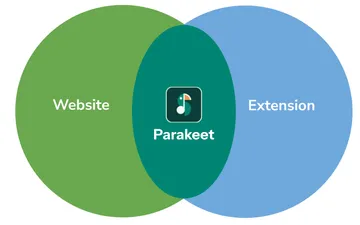
We had a decision to make: website or extension. And we chose to do both. Parakeet is part website, part extension. Parakeet’s website provides sound management and a functional soundboard that can play audio through a user’s personal computer. The extension, which users can download, syncs with the website’s data and is able to play sound over meetings.
An In-Depth Look At Parakeet’s Features
Adding, Editing, and Deleting Sounds
On the Parakeet website, you will see a clean layout of all of your existing sounds. Our product designer intern, Sharon Chang, prioritized designing a clean interface that is easy on the eyes and intuitive to use. There is a set of default sounds on the site for users who want quick access and limited customization. Want to add your own sounds and customize your soundboard? All you need is an account, and the world is your oyster!
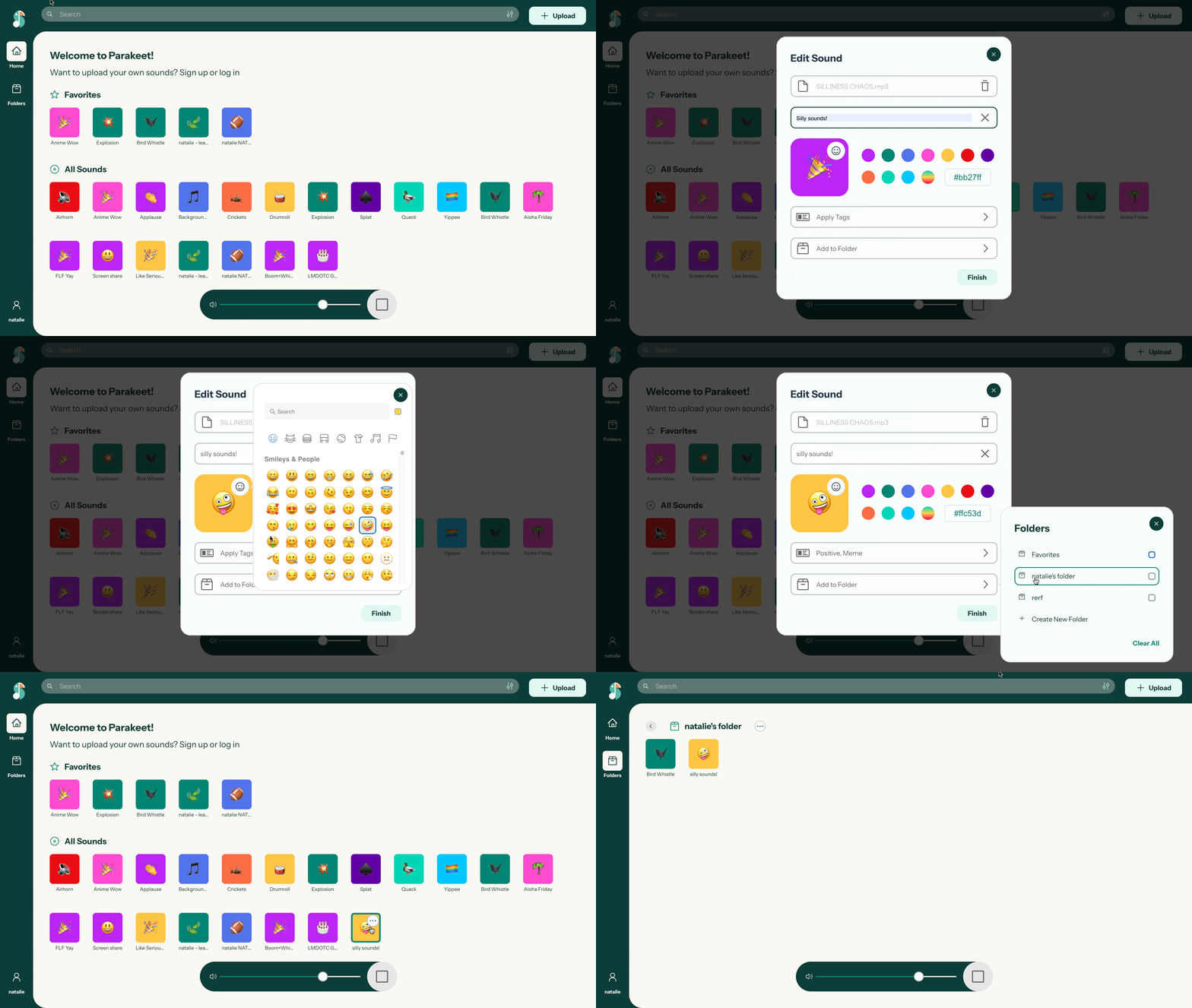
In the top right corner of the screen, there is an upload button. Select upload and drag your chosen audio, under 5MB in size, to the upload pop-up. Once you upload an audio file, you will be given a new button that corresponds to that sound, and a chance to name your sound, tag, and organize your sound (more on that later). You can also customize the button’s emoji and color. Once you save your work, the new button will appear on your soundboard. Give the button a press to hear your new sound effect! After creating a new button, you can easily re-edit its details and save the changes. You can also delete sounds entirely.
Organizing Sounds
Parakeet offers two different ways to organize sounds: tags and folders. Tags describe the type of sound a button contains, such as positive, sad, and funny. These tags can be used to filter sounds at the top of the screen, allowing you to view sounds that match the mood you are going for. This feature is especially useful when curating a folder.
Our UX Researcher Intern, Emily Dieu, found through testing that users want to control what sounds are available to play during a meeting. Folders provide a way to curate soundboards suited for specific occasions without the concern of clicking a button that does not belong. Users can create and manage folders to help create special soundboards for different occasions. You can place sounds in any preexisting folder, or create a new folder and begin adding sounds.
On the right side of the screen, clicking on the folder icon will display the various folders you have created. Opening a folder will display all sounds in the folder. By default, all users have a favorites folder, which pins sounds to the top of the soundboard while in the default display mode.
Playing Sounds in Meetings
Parakeet’s extension and website both contain a functional soundboard, and the same soundboard at that. However, their uses are different. As we went over previously, the extension injects audio into a Google meeting. The website is able to play audio, but unlike the extension, it cannot inject sound effects directly into a Google Meet. It is preferable for in-person meetings due to the lack of meeting integration.
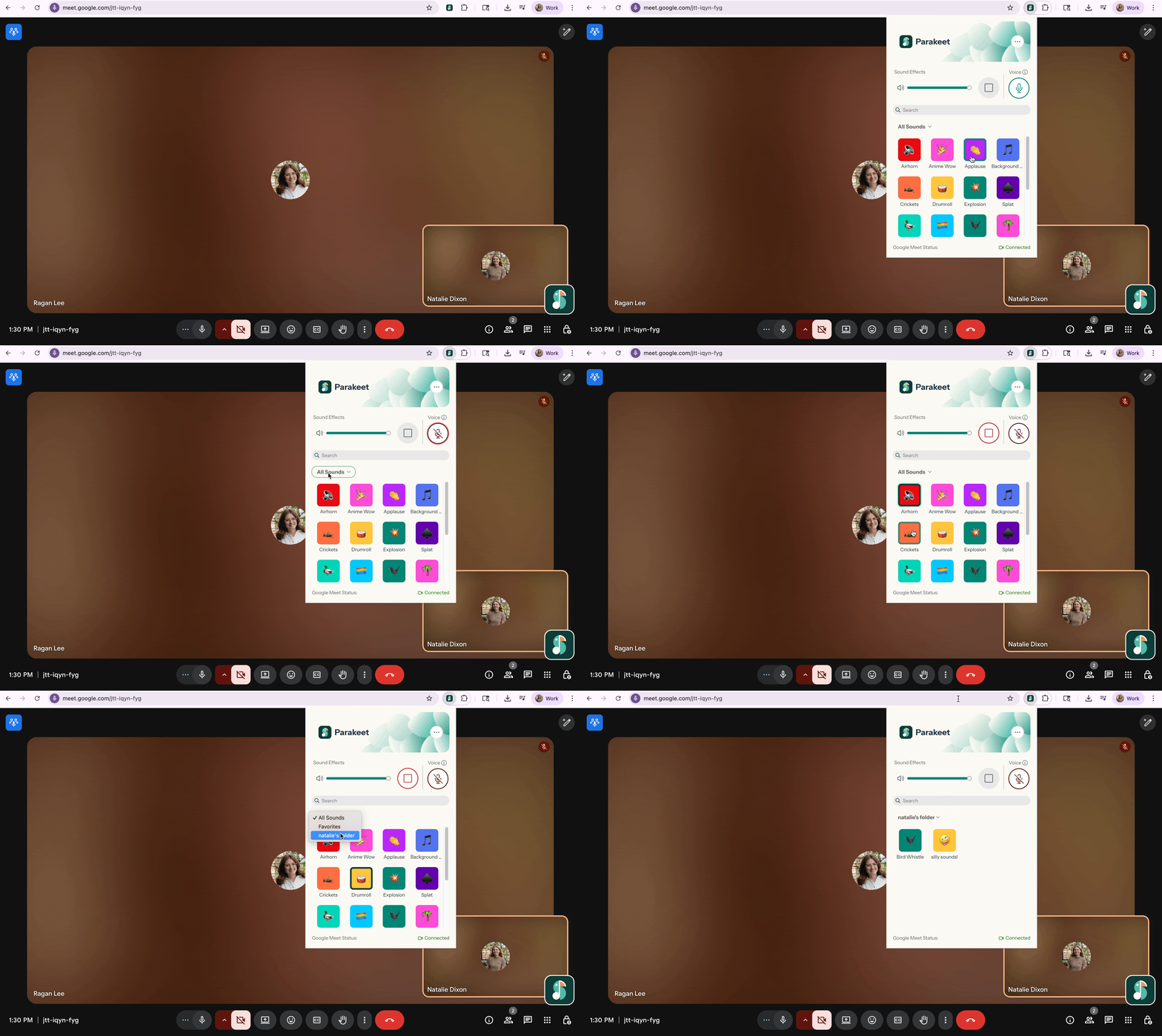
In order to play a sound in a Google Meet, you will first need to install the extension. Upon installation, there will be a new icon in the bottom right-hand corner of your screen; that’s your Parakeet soundboard! Give it a click and you will see a mini version of the full webpage. The extension is small; we prioritized quick access. There is a dropdown where you can select from your folders, a search bar to look for sounds, and meeting controls. You can control the volume of your sound, stop the sound, unmute your microphone, and play any sounds you’d like. There is also a settings link that redirects you to the webpage for quick changes to your soundboard.
A Note from the 2025 Interns
Parakeet was a challenge to build: we set big goals and had little time to achieve them. But through the late nights debugging and all, we had so much fun bringing our idea to life. We hope you all enjoy Parakeet as much as we enjoyed making it, and that it inspires delight and laughter. Stay tuned for your chance to use Parakeet in your own meetings!


