A Simple Way to Power Up `git add`


How using one (or two) flags with `git add` can level up the developer experience. Also, please don't use `git add .` haphazardly.
Spooky Season in December?! #
I came across an image recently that really threw me for a loop. Before I show it, I wanted to note that I do not condone doing what the next image does. You have been warned.
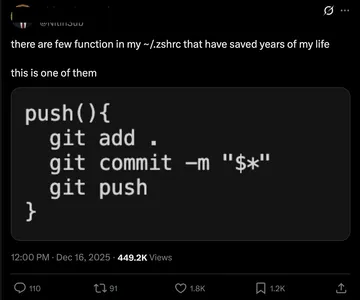
While some developers would prefer something like this, I personally actively and vigorously avoid using git add . at all costs (completely ignoring the remaining 2/3rds of the function, which I also hate).
Reason being, there could be some changes that I made locally that I do not want committed, but I also don't want to throw away right at the current moment.
There are a ton of ways to power up how you use Git's add command. Rather than covering a breadth of them, I want to focus today on one (well, technically two. Apologies in advance.) that I have had learned more about this past year, with the goal of inspiring just one person away from git add .
Enter the --patch flag #
When running git add, one of the first flags I was taught was --patch, or, shortened, -p.
What --patch does is lets you go patch by patch within any changes made in existing files in your repo, review the difference, and choose to add (or not) each patch of changes to the index. Read more about --patch` here.
What that means in essence is, let's say you edit three files. Two are changes you want to commit, and one has changes you do not want to commit. Here is what that flow would look like when running git add -p:
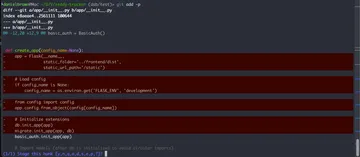
Ok, I see that I deleted a bunch of stuff for a Flask app that I probably should not end up committing. The interactive mode we're in gives us seven options (eight if you count the help ? option) for how we can handle this patch. I normally just use three: y, n, and q. For more info on the options, take a look at the git-add link from above for the git docs; I'll just be focusing on these three.
So since I don't want to be committing this code that will cause an error for sure, I have two options. I either hit n or q followed by the enter key.
q tells git to quit out of the interactive patch prompt without adding that patch and without looking at other patches after it.
n tells git to skip over this patch; do not add it for commit, but also continue to the next patch. Here, I want to hit n.
So I typed n and hit enter, bringing me into the next patch:
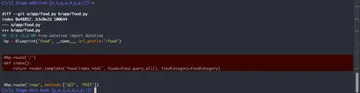
This is a change I do want. I realized, for example, I do not need this index route. So now I type yes, or y. That adds that patch. The final patch I have is this one:
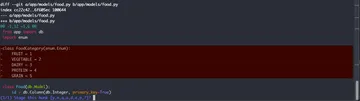
And I want this too, so I hit y again. After running this, here is what my git status looks like:
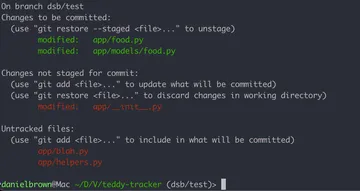
With the changes I wanted ready to be committed, and the change I didn't want committed still there, just not staged for commit.
But...hold on a minute! What are those files under "Untracked files"? I had forgotten that I added two files with very important work that I want committed. However, git add -p does NOT add untracked files. There have been countless times when I push up a commit and wait for CI to finish, only for there to be an obvious issue with, for example, missing a migration file entirely.
So here is where needing another flag comes in. Sorry about misleading you and saying we'd have a single flag, but I promise they will eventually be combined to one command!
--intent-to-add/-N flag #
Note that all credit toward this solution comes from this StackOverflow answer.
This effectively adds any untracked files to the index, without adding the stuff inside of them. The way to run this command the most conveniently is with git add -N ..
Wait, so now I am recommending to add all files with the .? git add -N needs to be told which untracked files to track. Using the period tells it to track all untracked files in the current directory, without adding the contents of the file yet. You could just as easily do git add -N app/blah.py to mark that single file as being intended to add. We'll see later on why choosing to add the entire directory allows us to run a single command to track all untracked files and then go through all patches, including those newly tracked files.
Upon running this command git add -N ., here is what my git status looks like
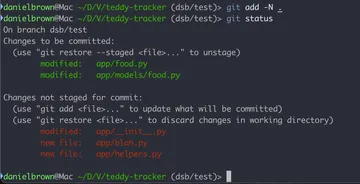
So now they moved from "Untracked files" to "Changes not staged for commit". And how do we add changes to be committed?
With git add -p!
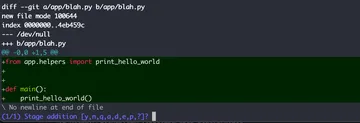
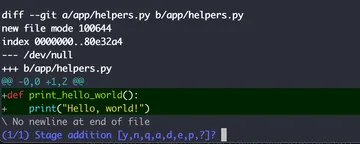
Now I see these patches of the new files!
Having to run two commands is a bit annoying, and remembering to do so is even worse. So we add a git alias to our .gitconfig
[alias]
    addp = !git add -N . && git add -p
Now, every time I run git addp, it adds untracked files and then runs with --patch, giving me the best of both worlds with just one command. Note that the ! is a way with git aliases to tell it to interpret the command as a shell command rather than just raw git. More info on git config can be found here.
One last step is that I rarely write out git commands; I have created aliases in my (fish) shell for them. So I updated my old fish alias (technically, a fish abbreviation) from
abbr -a -- gap 'git add -p'
to
abbr -a -- gap 'git addp'
So my muscle memory of typing gap to add files never changed; it was just augmented to now add untracked files.
And that is how you can make a small few changes to your add command to make your developer experience better. This holiday season, let's take a step back from git add ..
Please...for me?
Bonus Stuff #
In case the syntax highlighting/style of the screenshots of my --patch caught your eye, here is how I got that setup
I downloaded delta
And ran these commands:
git config --global core.pager delta
git config --global interactive.diffFilter 'delta --color-only'
git config --global delta.navigate true
git config --global merge.conflictStyle zdiff3
Also, here is a full list of my git-related abbreviations in my ~/.config/fish/config.fish:
abbr -a -- gco 'git checkout'
abbr -a -- gcob 'git checkout -b'
abbr -a -- gpo 'git push origin'
abbr -a -- gap 'git addp'
abbr -a -- gst 'git status'
abbr -a -- gcm 'git commit -m'
abbr -a -- gpof 'git push origin --force-with-lease'
abbr -a -- gl 'git log --oneline'
abbr -a -- grc 'git rebase --continue'
Disclaimer: Don't just blindly copy and use these without understanding what they do. Or if you do, don't blame me for when something unexpected happens.
Disclaimer 2: Also, git add . is fine and works for many people when used correctly. It just gives me heartburn, and seems to be used incorrectly often.


