The Mysterious “Save For Web” Color Shift
Warning, the following information is hotly contested. Read the comments for more info. Or, read my new, updated post, Save For Web, Simply.
While working on the Odeo relaunch, we kept running into a frustrating problem: When we saved out the slices, the awesome Odeo pink flattened to a dreary "light coral". I'd seen the problem before, but never so pronounced: The color, through no fault of its own, was obviously changing, and we were at a loss for a way to prevent this.

Fig. 1 : Dastardly!
The usual suspects get knocked out pretty quickly in this issue: It isn't a Mac/PC thing, it isn't a monitor thing, it isn't because the color profile is somehow set "wrong". Fellow designers: Somewhere between PSD and JPG, Photoshop is draining our colors of their life, like some horrible, RGB-stealing vampire.
There's a lot of confusion on the web over why this is, and a lot of solutions being offered. Everything I found fails the acid test, though:
Testing for Perfect Color Translation
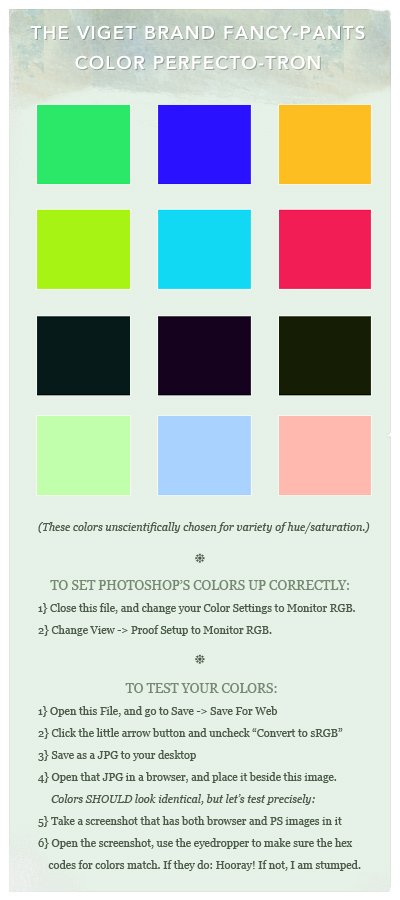
If I "Save For Web" an image from Photoshop, open that image up in a browser side-by-side with the original, I should see identical colors. I can then take a screenshot, open the screenshot in Photoshop, and test the color accuracy with our friend the color eyedropper, to show that nothing has shifted even slightly from the original image.
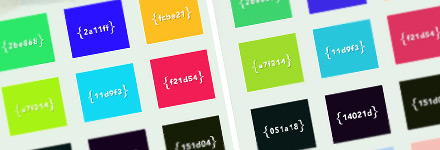
Fig. 2 : Checking for color shifts.
I've attached a JPG with some more indepth instructions at the end of the post. The testing process is a little painful, but the end result is worth it:
The ability to see, perfectly, how the colors in Photoshop are going to appear in your browser.
A Warning
What we're doing here won't make your colors look the same on all monitors or machines. Macs will display lighter (by default, at least), and monitors themselves will experience crazy color shifts based on age and settings. Reassure yourself: This is not your fault. The key is to calibrate your monitor as close to the center as possible, use Proof Colors (we'll get to that) to make sure details aren't getting blown out on other platforms, and be prepared to gently explain to clients why your green looks like aqua on their friend's 1992 Trinitron.
Okay, here we go: Three Steps to Color Perfection.
Step 1: Color Profiles
Color profiles define how Photoshop interprets the raw color data in your files. That's right: That means they change how you see the colors. This kind of precision is great for photography and print design, but it's got to go if we're making a website. With no images open, go to Edit / Color Settings.
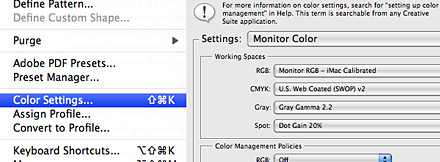
Fig. 3 : Changing to Monitor Color.
We're going to essentially turn off all this profile nonsense by changing the top drop-down to Monitor Color. Let's uncheck "Ask When Opening" while we're at it....from now on, when you open an image that has a color profile, Photoshop will give you a brief heads-up that we're tossing it out.
Step 2: Proof Setup
Now, let's go up to View / Proof Setup / Monitor RGB. This is to make sure Photoshop won't be showing you skewed colors on your nice new profile-less images. A note, though: If you're on a Mac/PC and want to see how an image is going to look on the other's default gamma setting, you can come back here and test using "Windows RGB" or "Macintosh RGB." Just remember to switch it back, or you could accidentally be designing in (shudder) PC mode.
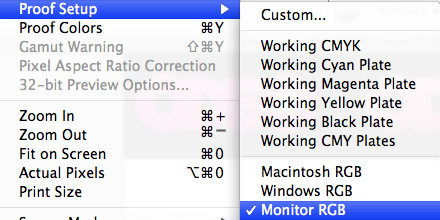
Fig. 4 : Make sure you're not viewing the wrong proof colors.
Step 3:
After all this hard work, Photoshop still wants to sneak color profiles into your images. Most web browsers ignore them, but new Safari and Firefox builds DON'T, and IE can be set to work with them too. This can result in the weirdest cross-browser headache yet, so we need to make sure the colors we save out are sans profile.
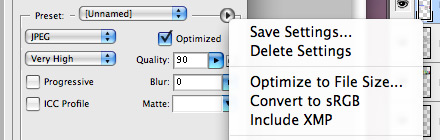
Fig. 5 : Convert to sRGB is an evil setting.
Thankfully, it's an easy fix: Open up any image on your machine and File / Save For Web. Next to the Preset option, there's a sneaky little arrow...click it and uncheck "Convert to sRGB." (Note: From what I can tell, this is only the default setting in CS3)
Congratulations
Your color woes are over! Or maybe not. If you followed these steps and your color accuracy test failed, leave a comment and we can try to figure this thing out using the awesome power of teamwork.
Download the color test jpg: ColorPerfectotron.jpg
International version: ColourPerfectotron.jpg
Update! April 9th
For some more indepth schoolin' on the how and why of color profiles, check out the great discussion MacMojo started in the comments.
Update! June $@%& 16th
Comments are officially closed at 200 (seems like a good enough place). I'm (very slowly) working on compiling and re-researching a lot of feedback I've received on this post.
Thanks for the tips. I’ve spent a few days of my life, collectively, pulling my hair out over bizarre color changes that I was pretty sure I’d protected against. Here’s hoping these settings make those a thing of the past.
One question: Are there alternate/additional things to need to do in Illustrator? We save for web from there and have had issues with that as well. Knowing Adobe, the settings are named slightly differently and located in slightly varying places.
I don’t have experience with Saving for Web from Illustrator, BUT, I just checked and Illustrator has the same nefarious “Convert to sRGB” option checked by default...it’s just hidden under a weird list-arrow icon to the right of the Preset pulldown when you’re Saving for Web. If you haven’t tried turning this off, it might do the trick.
Awesome writeup, Doug. I’ve also noticed some weirdness trying to save images as .png files (that disappear when I switch over to .gif).
Thanks for clearing that up — this has been one of the most vexing problems and at some point, sadly, I just gave up. I can’t wait to re-export all my site’s images so the color variation between browsers is kaput.
Great article, I was looking into this last week. I was trying to upload photos to Flickr and was frustrated because the colors were washed out. Turned out the photo’s color space was Adobe RGB and not sRGB. Still not perfect but it looks better.
Btw, I love the International version, but you didn’t do a full find/replace!
Good catch! Thanks, I’ve gone through and finished the internationalization.
Working really great, thanks !!
I think you could call this post:
“Pimping your Photoshop Color Settings” :)
For me in PHotoshop v.7 it was only a two step process, I don’t see the setting in the third step, so I hope I’m good still.
thanks.
I was definitely aware of some of the color anomalies, but not a fix for them, bright colors are the worst, they get tamed down sometimes.
From what I’m reading, version before CS2 didn’t have the Convert To sRGB setting selected by default, but you should be okay. I’ll make a note about this in the post. Thanks!
Thank you for tackling this, it’s a problem that has bugged me for years without resolution, can’t wait to try this out myself.
Nice write up, thanks for this.
I’ve done this once before but I forgot how after installing CS3 and the issue returning.
My colors are safe once again!
It’s good to hear that everyone was as frustrated by this problem as we were, it was making a few designers crazy here at Viget.
That’s gonna be a life saver! Thanks!
Good tips Doug, thank you very much! Just about every designer I know has run into this problem.
Have you also found that this doesn’t “correct” older files that were created without viewing in Monitor RGB proof? As in, you need to BEGIN your designs with the monitor proof mode active for accurate exporting. Opening older files and switching to that proof mode will simply result in an accurate preview of how they’ll look when exported (unfortunately lighter and de-saturated in most cases). This, at least, has been my experience… do you know of a method that will retain the initial intended values? Converting to a profile first perhaps?
I played around a little and might have an answer, Casey...to test, try “Edit -> Assigning” a crazy profile like one of the Fujifilm ones to a test image, something that makes an obvious difference in the color of the image.
The original colors are still there in the image, which you could see if you saved/closed/re-opened and “discarded” the profile. But what we want to do convert our weird preview version of the colors to the actual, un-calibrated color. Go to “Edit -> Convert to Profile.” Select the working Monitor profile and turn off “Flatten Image.”
You should now have weird-looking image that is (ta-da) basically profile-free. You can save it for web and the colors should be nearly identical....I tested mine with the eyedropper and only found slight disparities.
Note: I don’t know what horrible voodoo is actually happening behind the scenes here, so I wouldn’t recommend going through your archives and trying this on every image. But it seems like a viable fix for images made under bad profiles.
Wow I like this! I remember the color shift getting the best of my time, a day or two before a deadline… It took me a few hours to get back on track again, this would have quite come in handy.
Will keep this one in my tool box of solutions! Cheers!
I’ve had a similar problem with my dark tones when using ‘Save for Web’ on my duotone photographs. I observed in the ‘saved’ version a fairly consistent percentage of darkening in the detailed regions of shadows and wasn’t quite sure what was causing it. I was able to ‘correct’ the issue by changing my overall black output in Levels to around 8-13 from 0 as the step just prior to using “Save for Web”. I’ve tested and the problem seems to gone after applying your suggested changes. As a photographer, I’ve always been bummed that my images would look differently on the same monitor that was used to produce them...let alone those throughout the rest of the world. At least the first part of that equation has been remedied, not I just need to drop the coin on a nice calibration setup. Anyway, great piece and thanks for the helpful tip...you’ve bettered my workflow.
wow thanks so much, I have been wondering how to fix this issue.
This tip is very much appreciated. :)
Very beautiful template!
I’ve recently encountered this problem when working collaboratively with my boss on a PSD.
I’ve read much and the procedure I went through is drastically different.
In Color Settings, I chose the sRGB setting. I also changed my mac gamma to 2.2 to fit “most” monitors (as more people are using a pc than a mac...). I then disabled the “Convert to sRGB” option in the Save for web window.
These were the recommended settings for designing for the web… well, according to what I read earlier, you’re making me doubt!
By default, it seems that Photoshop CS3 puts in the Adobe RGB settings, so when you save for the web, the color profile is embedded and the image’s color profile is changed to sRGB which gives you another result altogether from Adobe RGB. (to my understanding)
Basically CS3 converts to sRGB by default when it saves a file for the web because that’s a standard. But they just don’t use that profile in photoshop’s “editing” mode. This is non sense, but I guess they figure we’re not all web designers.
Hopefully, all this made sense!
Jerome.
Jerome, thanks for adding to this discussion. I had also read that sRGB -> Save For Web was the best workflow for web color We tried it, but we continued having the problem.
A quick test: Open the “Color Perfectotron” in Photoshop, and “Assign Profile” to sRGB. You should see a slight darkening.
Now, save it for web/JPG as “ColorPerfectotron2” without the “convert to sRGB Profile” option. A reminder: “Assign” simply changes how we see the image, “convert” actually changes the pixels in the document to match the profile.
If you open Perfectotron2 in a browser, and view it beside the sRGB version in photoshop, you should notice a slight difference. Take a screenshot and test a few of the colors with the eyedropper, and it becomes more apparent.
I’m suggesting that based on test cases we’ve seen, if you “view” in sRGB but save images out without profiles, you’re going to see color differences between the Photoshop and browser versions.
Confession: I sort of brushed past the “proof colors” in this entry, but in most cases, we found that setting them to Monitor RGB was enough to get an accurate color representation. However, if we’re going to proof without color profiles, and save without color profiles....why have color profiles assigned at all?
Thanks, I understand much more of the mystic color profiles!
Rereading what I’ve written earlier… it didn’t make much sense hehe.
My old technique did everything to comply with the setting in the save for web mode “Convert to sRGB” when it could’ve be as simple as your way of doing it.
Even though we’re not yet at the point where everyone on every screen will see the same exact color, it’s better than nothing!
Jerome.
Jerome, you had a good point in that sRGB really is how we’re “supposed” to be doing our color work. I just can’t, for the life of me, get it to work correctly!
Based on what we’re saying, I think viewing in sRGB and then Save-For-Web converting to sRGB should produce visually identical results. One is viewing a skewed version of the colors, the other is saving the colors out through a skewed “filter,” so it should match up. But there’s still some mysterious X factor I’m not quite getting that prevents this from actually working correctly…
(You must think I have a lot of time on my hands!)
Maybe your X factor is the browser. Every browser, except Safari, ignores an embedded color profile. From what I understand, the color profile forced on an image in a browser is “Monitor RGB"… being however the user’s monitor is calibrated.
So even if we work in sRGB, convert to sRGB and even embed the sRGB color profile, it still won’t feel right in every browser not Apple-made (hehe).
As hard as we try to design with nice colors, correct colo profiles and calibrated monitors, most people don’t know a monitor can even be calibrated. I come across this problem too often when presenting mock-ups to my superiors.
I think your technique is as close as it gets to having a farily good idea of how an image will look compressed and to others.
Jerome.
Oh dear. Just read the topic and if you don’t mind me adding my 2 cents: Please do not turn off P’shop colorsync settings. There won’t be any color shift what so ever if you work in sRGB (sRGB IEC 61966-2.1 is recommended).
Open your own JPG and assign this profile. Save for web… and no color shift! (PS: Save without the ICC tag, ‘cause it’ll make the imagesize larger).
I wrote an article some time ago explaining exaclty what happens, unfortunantely it’s in Dutch…
http://www.macmojo.nl/nl/artikelen/photoshop-kwaliteit-behouden-bij-opslaan-voor-web-2.html
But here’s an English one:
http://www.gballard.net/psd/srgbforwww.html
Good luck!
I read Ballard’s article while researching this, but working in sRGB and saving for web without the ICC profile is resulting in color shifts in all my tests. Using Ballard’s sRGB settings, the exported image has lighter, less saturated midtones when viewed in a browser.
I don’t know too much about the color profiles, but it seems to me that if we’re setting up a color working space in Photoshop and then exporting images without this working space, there are going to be color discrepancies. If there weren’t what would be the point of using the color profile at all?
Ballard’s fixes include changes to the monitor settings, which I agree are important. But it’s not too much to ask that an image I “Save For Web” preserves the exact same colors I saw in Photoshop, without any profile or translation issues. As far as I can tell, the fix posted here can accomplish this...and unless I’m missing something, there’s no major downside for losing the sRGB setting in a web design environment.
I think the only point about why we should use sRGB in his article (which I initially based everything on) is this:
“BECAUSE over 95% of web monitors are based on 2.2 gamma (and will display the least amount of shift in the sRGB rollover).”
Even if you don’t embed the profile, the colours are still converted (since the tutorial doesn’t say to uncheck this option in save for web), so I guess with the colors forced in sRGB, the hex values aren’t the same and therefore look better in most browsers.
“ But it’s not too much to ask that an image I “Save For Web” preserves the exact same colors I saw in Photoshop, without any profile or translation issues.”
It is actually. (Unless you are saving with ICC-profile and only use Safari or Opera to browse).
One cannot expect all browsers to render color like the ‘mother of all color apps’ Photoshop… You can let P’shop behave like a browser using the sRGB profile. This way you’re not fooling youreselve with perfct colors ‘cause most people won’t have a very good or calibrated monitor. And mst of the time, you are designing for ‘most’ people’.
Bytheway, I do not get a color shift on my (Eye One calibrated) high end Eizo monitors if i assign sRGB to your JPEG and ‘ave for web’.
I realy enjoy discussions like this. Most of the time the “webguys” tell the “printguys” how stuff works ;-)
So what should we do?
You’re telling me browsers “assign” by default the sRGB color profile? (except for Safari [and opera?])
If this is the case, I suppose it is better to put everything in sRGB and save without the ICC thingy checked.
Jerome.
Yes and no. The nice colors you see in Photoshop are actually aRGB (Adobe RGB). This color range is much larger than sRGB (small RGB). Hence the shift in colors.
The browser is actually color-dumb. (well most are). So no need to save with the ICC-tag. You can create your own ‘dumb’ preview in P’shop if you work in the sRGB profile.
Oh and there is a difference between ‘assigning’ or converting to sRGB too. A huge one.
A bit off-topic but also a myth: What dpi should one use for images for web? 72? 92? 300? Answer: None....
I guess I’m saying that since I browse the internet all day on my monitor, that if I decide I want my green to be slightly darker than the green I see on another site, I should be able to a) make a slightly darker shade in Photoshop b) export it and see, in the browser, that it is slightly darker but in other ways identical. Working without color profiles makes this possible with any monitor, but working with them requires that my monitor be very precisely calibrated (something, I confess, it probably is not) to achieve this.
Since all of my browsing is relative to my personal monitor calibration, Photoshop is doing me a disservice by showing me a guess at what red looks like in other color spaces, when red looks different on my own. If I want to see my colors in other gammas/color spaces, I can use proofing, but until then I’d like Photoshop to show me colors as they’re actually going to display on my monitor, even if it’s not calibrated perfectly.
So it sounds like we have two answers to the frustrating problem of exported colors looking different from Photoshop colors:
1) Calibrate your monitor very well
2) Try working without color profiles
-----
MacMojo, unless I’m incorrect, “assigning” simply asks Photoshop and other non-dumb programs to shift colors based on the profile, right? And “converting” applies the profile to the actual color values of the image?
@MMjo
The comments about image dpi, could be off track to anyone concerned with ppi, which will directly effect the size of the image in your browser. Unless you use CSS or another means of telling the image to show at a certain size specification.
Correct. Basically everything you view browsing is displayed using no ICC. Best way to recreate these colors is using the sRGB profile and a CSS viewer like Firefox’s extentions and tools.
You can create any color you wish as long as it’s in range. Always start with a sRGB P’shop file and the color shifts should be minimal.
‘Converting’ tells Photoshop to give the image the same color-feel as before only in a different profile. ‘Assinging’ keeps the same numeric values but alters the way the color feels. A very big deal especially for cmyk-artwork. The last thing I want is 100K to change to something like this: 22.3/55.4/55/7/96.
I write about this stuff a lot. There are 3 English articles here:
http://www.macmojo.nl/nl/englisch-articles-summary.html
Ahh got ya macmojo, but the first thing when working on web files would be going to image | mode | and switching to RGB there. This feels like two different streams of comments those aimed at Print design and those at web. I think somebody already suggested that.
Colormanagement is both RGB and CMYK. I run a RGB workflow for all my CMYK stuff as well.
I personally change my preferences when working for web to sRGB. When I’m done I switch back to aRGB. (And because I’m a purist I use a aRGB with adjusted white point. It’s set at 5000 Kelvin instead of the 6500 Kelvin aRGB uses ‘cause 5000 Kelvin is the temperature of ‘norml daylight’ and documented ISO conditions).
But that’s just us ISO freaks ;-)
Just found this site today. It’s in my bookmarks now!
MacMojo, thanks for stopping by and helping hash this out with us! I’ve updated the post to help readers find your comments and contributions to the article.
You’re more than welcome. Love the articles and profesional attitude here.
@Ti: dpi, ppi, it doesn’t matter. The only thing that matters is the pixels size. Dpi or ppi information is egnored by the browser. Try it by making 2 150x150 pix images. One 72 dpi and the other 300. As long as the size remains 150x150 pixels both images are shown the same size in your browser… No css required…
I don’t think it is a good idea to completely turn of color management. If only working for the web this might work, but you will run into some trouble if want to print your images, as already mentioned.
There are numerous reasons for color managing. In fact its there for avoiding these problems (change in color) but it must be set up correctly to work. But if everything is set up fine you will have no color problems anymore (even in printing).
The Save for Web Problem doesn’t occur because Photoshops changes your colors after saving for the web, but because it displays them differently than applications who can’t color manage while working on them.
I wrote an article on how to set up your color management and still see your images as you would in a browser to avoid the “Save for Web”-Problem:
http://essenmitsosse.de/how-to-set-up-color-management/
Thanks for adding to the post, Essen. I’ll have to test your method and see if the color shift is reduced...I understand the value of color management for printing, but I still spend 99% of my time saving out files to browsers, so I was looking for a flawless way to get those colors matching up.
Thanks for this helpful resource Doug!
Doug: Yeah, I know it seems easier to just deactivate all the color management. But it is there for a reason.
If somebody sends you a file in Adobe RGB (which isn’t that unrealistic, I think) and you just drop the profile all colors will be interpreted as if they were sRGB. Which will lead to the thing you just wanted to avoid: wrong colors!
Same works the other way around. If you send somebody a file with no profile and he has to guess what profile you are using (because this person is color managing) well … you can guess what could happen.
If you set up everything right for one time, you just have to give attention to activate color proof. But you can be sure every image you create or open is just displayed exactly as it should.
Essen: but if we’re talking about the web here, that Adobe RGB file is already in the “wrong colors,” because that profile is going to be dropped when they Save For Web, and the flat, unmanaged colors are going to be outputted. I’m advocating that in this case, you can drop the color profile and get an immediate understanding of what this image will look like, in your browser, if you export it right now. Then, use proofing to check it on other color spaces.
You and MacMojo are saying that if I have my monitor calibrated well, the sRGB space should show me an accurate representation anyway, which I understand...but why would I want to keep an aRGB profile someone sends me, if I know the colors will shift when I Save For Web anyway? Seems like it might make more sense to “convert” to Monitor RGB in this case, so I’m keeping the colors the sender intended and translating them accurately through to the final exported images.
Thanks for following up on this, I’m getting a lot of stuff to try out from this conversation.
Thanks a lot for this article, I too spent many hours trying to fix this. I came across this article at one point: http://tancredi.co.uk/2007/5/13/photoshop-cs3-and-save-for-web-issues that seemed to solve it but I think I tinkered some more and I was back to square one.
Going to go back and re-save some images so they look like they’re supposed to.
Tony, the article you linked to is essentially the same method I’m advocating. I hadn’t seen it during my initial searches, which were a few months ago. Thanks for posting!
(Also, your site looks great!)
Well, that Adobe RGB file is in the wrong color if you drop the profile. Try saving a picture with Adobe RGB and than open it up again dropping the profile. This will cause the colors to change. Because they are as if they were Adobe RGB but are now interpreted in a different way.
But if you do color management they will be converted correctly. Thats why the “Convert to sRGB” should be checked. This only produces wrong colors if you have no profile for the image (because you dropped it or because you never used one). So Photoshop can only guess how to convert the picture.
But if you Photoshop knows, that the colors of the picture are in Adobe RGB they can be converted correctly.
The problem is, you have to activate the color proof for your monitor RGB or Photoshop will display them wrong (even if they are still right), so you get a difference between the way the colors look in Photoshop and the way they look after saving for the web.
Thanks for a great explanation!
I am having a few problems though. I’ve followed the settings, opened a previous design and discarded it’s color profile as stated. The image darkens, is that normal? Then when i select proof setup and select “windows” it brightens up. I have a calibrated mac display, and when clicking the “windows” proof setup i need it to not change, so i know the images i see will look as close as possible to those on PC’s, if that makes any sense. Any help would be appreciated
Phil, you should experience a color shift, in most cases, when you remove a profile....the profile was, in a sense, “tinting” the colors you saw. To preserve the color, you can try Converting it to Monitor RGB instead.
The Windows proofing setup is essentially your monitor profile, but in 2.2 Gamma. I’m testing with a mac-calibrated monitor as well, and find that if I go to Display settings and set my screen to 2.2 Gamma (the standard setting for windows machines), it darkens everything a little bit. Then, when I select Windows RGB in Proofing, there’s no change whatsoever. Hope this helps.
Dude, thank you from the bottom of my heart. We, the designer at Jive Software, salute you. It has been plaguing the design of our new site. Adobe CS3 on our shiny iMacs has been a very painful process. We had narrowed everything down except for that evil, evil little fly out in step 3.
Thank you from the very depth of my anal-retentive, OCD, designer-soul.
Phil: It depends on which gamma correction you calibrated your monitor. The normal Windows monitor is calibrated with a Gamma correction of 2.2. Macs are normally calibrated with a Gamma of 1.8 which is a bit lighter.
In every calibration application you should be able to define a Gamma to which you want to calibrate. Just set it to 2.2. This will make images on your display look like on a windows computer.
Thanks so much for all your input. My photoshops are pimpn’
Hey Doug, thanks! I’m still trying to get over all the lovely details in the new sites that you guys have created, it’s really inspirational stuff!
This is excellent. I have implemented the fix, and even though it isn’t 100%, it is such a vast improvement over what I have been doing (saving for web as I go just to double check my colors). I have been searching for a very long time for an answer and now I have one! And it makes so much sense. No offense, but the advice from serious color management gurus has not been helpful. This is a real solution, as you aptly stated, only for web designers.
Jeremiah, glad to hear it’s working out for you. I’ve noticed some small imperfections on the process since I posted, which is aggravating, but like you said, it’s still an improvement on the old process. I’ll keep looking at ways to get a bulletproof method on this…
B.I.N.G.O., ‘nuff said.
I mean a web designer may just manage images for web period. If this works it’s one size fits all.
The other stuff was very enlightening, wow.
Thanks for your help guys. I’ve set my monitor to 2.2 and ignored my custom calibration i did. This sorts out the problem of clicking “proof setup” for “windows RGB” and it getting brighter, although when i select monitor RGB it gets darker (slightly confused by that if my monitor is already selected in the color settings). But anyway now when i click save for web, it gets slightly darker? I’ve tried deselecting “convert to sRGB” in the drop down menu in save for web mode, but that hasn’t worked. Any thoughts? My brain hurts....
Thanks
Phil
Phil, are the saved-out images appearing slightly darker than your Photoshop comp when it’s in ‘no proofing’ mode, or when it’s in Windows proof? I’ve also noticed a slight shift between 2.2 Monitor RGB and Windows proofing colors, which seems to point to another factor besides Gamma that separates Mac and Windows setups (other comments seems to suggest it’s the sRGB color profile that Windows uses).
Doug - Yeah they’re appearing darker when saved out. I have my monitor set to 2.2, images in photoshop look fine, i then click “proof setup” for windows RGB, and the image stays the same, great! but it’s as soon as i hit save for web, it darkens up :( Very annoying though, i’m actually color blind, so i’m only going on contrast, but i can’t be designing things, which are dark in nature, for them to look even darker by others and for detail to be lost.
How do you set your monitor to 2.2? Does this create a monitor profile? Is this profile selected in your system preferences?
Also, as a suggested in the article, that I postet above, you shouldn’t use your monitor profile as your RGB Profile.
I think this is a problem, coming from not color managing, because now you can’t tell what Photoshop is really doing.
Wow, this really helps solve the mystery!
Thanks for writing this!
I have been just pressing Command/Control + y to get my colors the way I want using Curves and /Hue Saturation adjustment layers.
I will give this a try and see how it works for me. :)
I use standard monitor colors, and use two monitors. Were buying a screen calibrator soon though. I want the best for my monitors, because I’m a designer.
You could look at the Eye One Display:
http://www.computer-darkroom.com/i12/i12_page_1.htm
I think this is a good article to compress photography for the web and maintain color saturation, but the example you provided should have been compressed as a GIF.
General rule of thumb I’ve always followed is GIF for illustrations and logos, JPEGs for images.
JPEGs do a poor job compressing illustrations with solid colors and hard edges due to its agressive lossy compression resulting in a larger file size.
Of course I know common practice on the web is to use what does the job so to each his own…
oh man.. no wonder some of my designs don’t turn up the way they’re supposed to, especially after I ‘save for web’ a piece of graphic. This sucks.
But thanks for the tips, gonna try them some time.
You can’t disable color management in Photoshop! And there’s no reason to try.
All you’ve accomplished is hosing the previews in Photoshop so they are just as wrong (only on this one machine) as the other dumb non ICC aware applications. And that did what to improve things?
Its akin to seeing an image that’s too dark in Photoshop and cranking up the brightness so it looks lighter. That’s a fix? Nope.
Worse, there’s a way to have Photoshop preview how images on YOUR machine would look on YOUR non ICC web browser that he shows in step 2 without hosing the rest of the application by doing something as dumb as setting the color settings as illustrated. Just setup a soft proof using Monitor RGB. But in the end, until more browsers are ICC aware, there’s nothing more you can do than leave Photoshop setup PROPERLY and convert files to sRGB for the web, then hope for the best.
Its pretty simple really. Unless you’re using Safari or the beta of FireFox, your browser isn’t color managed and even uploading a document in sRGB does NOT guarantee it will match Photoshop. The Photoshop preview is correct because it uses both the display profile and the embedded profile (in this case sRGB) to build a preview to screen. Non ICC aware applications simply send the RGB numbers to the display. They don’t know anything about the fact that you’ve got a display profile or that the data is in sRGB. So, the two don’t match.
When you set Photoshop’s color settings for Monitor RGB (which BAD idea) or use the Proof Setup and select Monitor RGB, Photoshop acts like a dumb web browser and the previews match. Don’t you feel better now that Photoshop is equally incorrectly previewing the numbers incorrectly (but using color management to do so)?
Short of using an ICC aware browser, there’s never a guarantee that Photoshop or any other ICC aware application will match.
Andrew Rodney
Author “Color Management for Photographers”
http://www.digitaldog.net/
Thank you SO much for posting this! I’ve had this issue for months on end and thought I had tried everything.
Where’s the ‘Donate’ button?
Slight, confused update:
I am still having color shift when I’m working on my RAW .nef (Nikon) file in Photoshop. That is, after I open the file, makes some changes in Adobe’s Raw program, and then take it into Photoshop, saving for web shows me different colors than I had been seeing.
Additionally, if I copy the images out of the .nef and paste them into a new window I also get this color shift (darkening).
Dave, I haven’t worked with the RAW program, but it sounds like it’s not discarding the profile after your import. One thing to try might be “Conver to Profile > Monitor RGB,” which should take the colors you see and lock them down to the “actual” colors of the image.
BAD IDEA TO USE “MONITOR COLOR” IN PS COLOR SETTING
BAD IDEA TO DISABLE DEFAULT “sRGB” IN SAVE FOR WEB
The fix is easy you already nailed it in Step 2.
ALL YOU NEED:
View / Proof Setup / Monitor RGB
Just do that once. EVEN if it is already set to it, do it again, to make fully sure it is set. This will show you what it will look like in your browser. You can even set this as a photoshop action to make it easier and faster. After you do this when you save for web there will be NO color shift even with the default “Convert to sRGB” is checked, for making “proper” web jpgs.
DO NOT set your PS Color Setting to “Monitor Color” BAD!
There will be a color shift “with” convert to sRGB “checked” in the save for web option, when you set PS color settings to “Monitor Color”. This is why you should NOT use “Monitor Color” as your Color Profile.
DISSIT is correct and most of what’s being discussed here, including the bulk of this article I’m sorry to say is not only technically incorrect but not helping the issues one bit!
Photoshop and all ICC aware applications ARE showing you the numbers correctly and anyone else who works with such an architecture. Trying to “break” Photoshop so it is just as wrong as most all web browsers is akin to driving along, getting a flat tire, getting out of the car and puncturing the other three so all four are now flat!
Users either care about the color they see or they don’t. IF they care, they need to use one of the two web browsers that support color management. Those that don’t care, no issue.
I’ve heard the argument “well most people don’t use Safari or FireFox” and then they go about, puncturing their tires, instead of doing something real simple (because they do care about the color) and telling themselves and others to use a browser that understands proper color management. You can and should educate users who care, and complain to anyone who builds a dumb web browser, but this article and the advise is totally counter productive. And in fact, you’re now potentially ruining images that may not go to the web with very bad, dangerous color settings. I understand that the author is trying to help, but I think he really needs to understand what effect these settings have, and how in no way do they help or accomplish anything useful.
And that an image is Raw or rendered is totally immaterial to this discussion (you’re not getting this to work because again, you’re not using Photoshop properly).
THANK YOU SO MUCH!
For ever I have wondered why all my work looked so dull and dead, and why was my PSD files looking so awesome. Well now I know. You rock. Thank you.
@DISSIT - From what I’ve been checking, it looks like the Proof -> Monitor RGB is good enough when saving WITHOUT convert-to-sRGB. One issue is always remembering turn Proofing on (no way to keep it on at all times, which is frustrating).
Converting to sRGB, however, I’m not convinced on...been trying it out and there are slight color shifts in Mac Safari from Photoshop, although they’re still not much. Which is odd, because without an ICC profile attached, Safari shouldn’t re-interpreting colors, correct?
@Andrew Rodney - Only one person in this thread has offered an actual argument for why stripping out the color management is the kind of wrong that deserves all caps, and as a result, I’ve repeatedly amended that this method is suggested for web design only.
Of the major browsers, only Safari honors ICC profiles. Even the new FF doesn’t honor them by default. You can test here, where you should see lines around the boxes in a browser that correctly renders images with the attached profile. This is an example of what goes wrong when exported images go through color shifts or have ICC profiles: Images that are supposed to blend nicely into hex-color backgrounds show hard edges instead.
So, with your ICC profile method, I’d need to manually find a new hex value that matches my image when its color gets interpreted for Safari, which seems like a difficult process to go through for a single browser.
You can and should educate users who care…
Since only one browser honors ICC profiles by default, you’re saying web designers, who build sites for clients and thousands of users with different capabilities, computer ages, and levels of technical proficiency, should suggest that all 96% of non-Safari users switch over so they can see our colors as we intend them? I appreciate promoting browser standards, but I couldn’t agree with that less.
A note to other readers: Color profiles CAN be assigned, proofed, and viewed on for-print images, very simply. What I’m suggesting is that web designers set their Photoshop up to work best, by default, for what they spend most of their time doing. No one is puncturing Photoshop’s tires or choosing to ruin all print images here, just trying to get a little more control over what we see in our browsers.
Safari isn’t the only web browser that honors profiles.
You do NOT need to embed the profile! As long as the document is in sRGB, Safari will still provide a far closer color match because its using the display profile and an assumption about the color space of the document.
The settings you propose, for web users only or not doesn’t provide anything at all useful. All you’re doing is forcing Photoshop to preview the numbers and the color appearance incorrectly and os ONLY legit on YOUR machine(because you’re using your display profile). Say this to yourself 50 times “you can’t turn off color management in Photoshop, you can’t turn off color management in Photoshop.
If you want to see what the image looks like incorrectly displayed, open it in your browser. Why first hose the proper color settings in Photoshop to soft proof the image to show you an incorrect preview? Just open the image in any non ICC aware application or upload the image and look at it? Again, you seem to misunderstand that you’ve done absolutely nothing useful in how you are suggesting Photoshop users set their preferences. If you leave Photoshop alone, yes, the previews don’t match but then, unless you use the two (current) ICC aware web browsers, its not going to match anyway, its incorrectly being previewed and setting Photoshop the wrong way doesn’t change this fact one bit. So why do it? Its a feel good button or just a sugar pill placebo.
>Since only one browser honors ICC profiles by default, you’re saying web designers, who build sites for clients and thousands of users with different capabilities, computer ages, and levels of technical proficiency, should suggest that all 96% of non-Safari users switch over so they can see our colors as we intend them?
I told you that you have two users; those who care about the correct color appearance and those that don’t. IF THEY CARE, the ONLY way all users can see the same RGB values identically and correctly is to use an ICC aware browser. I don’t know how I can dumb this down for you any more. ICC aware browser equals correct color appearance for all users. Non ICC aware browser, anything is possible. If you care, you use one of the browsers. There’s nothing more you can do. So yes, you find out if anyone really cares about proper color and you tell them how to do it. Or you can ignore what are facts, and deceive yourself into thinking everyone is seeing your site identically and correctly. That’s not happening but if that makes you feel better, go for it.
And yes, you are puncturing Photoshop’s tires in that what you’re currently viewing is simply science fiction, its not something anyone else will necessarily see, and in fact for those smart people using an ICC aware browser, you’re going out of your way to ensure that what is being shown (correctly) will not match what you’re viewing in Photoshop. How is that at all useful?
If only 5% of users work with such browsers, you’ve now guaranteed that when you work in Photoshop, the images you view will not match those 5%. Does this fact make you feel better? If you use your recommendations for Photoshop, you’ve now made it such that 100% of users are not seeing the image as it should appear and neither are you. If that’s not puncturing Photoshop, I don’t know what is.
Did any of you use ImageReady? Omigod, it was awesome: basically Photoshop with absolutely everything that wasn’t related to creating Web graphics removed. No CMYK, no image resolution, no TIFF, no nothing. It was the greatest Web graphic tool ever, and the Adobe/Macromedia merger killed it in favor of Fireworks. I upgraded from CS2 to CS3, and all of a sudden color became this weirdly relative concept. Thanks so much for these great tips— the sRGB one is what I was missing.
I had already turned on sRGB, going with the suggestion here for monitor, still turns on sRGB as a profile, so this article really made no changes for me in PS7 on Win.
Can the posts be paginated, this sucker’s getting long and long winded, lol. All good though!
Thank you so much for this explanatory post. The fading save-for-web colors and the inexplicable cross-browser color shifts were causing unbearable headaches.
“Based on what we’re saying, I think viewing in sRGB and then Save-For-Web converting to sRGB should produce visually identical results. One is viewing a skewed version of the colors, the other is saving the colors out through a skewed “filter,” so it should match up. But there’s still some mysterious X factor I’m not quite getting that prevents this from actually working correctly…”
The mysterious “X” factor is that your monitor is NOT sRGB, but viewing untagged images in a browser that in non color managed or has it turned off assumes that the file is in Monitor RGB. The further your particular monitor is from sRGB, the larger the difference you’re going to see between Photoshop and your browser. The “problem”, as it were, is not a problem at all, but more a misunderstanding or lack of understanding of how color spaces and device gamuts interact. The visual color shift is more noticeable on the newer wide gamut monitors. The only real fix is for everyone to use both sRGB (great for older monitors), embed profiles and start insisting that every web application become profile aware, both in honoring embedded profiles and being able to set an assumed profile for untagged images.
Thank you for the great reading. It saved my life !
Thank you so much for this advise.
I just forwarded this article to about 40 designer friends I know, most of which have had issues with this, and have not found such a beautiful and simple solution.
Thank you so much for the help with this!
Cheers
A
Surely you all are kidding about taking the advice given at the top of this blog. If you’ve read everything here including my comments and Andrew Rodney’s and still want to set your working space to Monitor RGB, just realize it’s akin to going back the the color management characteristics of Ps 4 and below, where the working space was your monitor space. If you decide to do that, be aware of all the ramifications and how it might affect your other work. But hey, it’s not my head being buried in the sand.
Color shift has been a problem for me ages ago. Now the hassle is over. Thanks alot.
Thank you very much, I’ve had this problem recently and i know i know that i wasn’t crazy or something :)
I’m a photographer that uses alot of images for web. The problem with this tutorial is that your images are going to look different on different browsers ie firefox vs safari. Color profiles are important and color lcd profile is a quick easy fix which I used to use but its not appropriate for web. If you want your images consistent over more screens/browsers your going to have to resort to sRGB.
There is a simple rule I work by after much research:
1.) All apple uses convert your gamma to 2.2
2.) Change Photoshops color settings to adobe RGB 1998 space. (Thats if your a photographer if your solely web based choose sRGB.)
3.) ALWAYS turn proof colors on under the View menu in Photoshop EDIT/DESIGN WITH THIS SETTING ON. I wish you could have this as a default instead of having to keep turning it on after opening each image.
4.) If its going on the web convert to sRGB as early on in the process as you can, make sure color proof is on after conversion.
5.) Check convert to sRGB at save for web screen.
The only issue I have is I often export images from aperture to Photoshop. The images are shot digital in the Adobe RGB color space, when first imported into photoshop they look exactly like they do in aperture however as soon as you turn proofing on which is how they will end up looking the color is just sucked out. Anyone know a way around this? The proofing in aperture doesnt seem to match the photoshop one.
very nice article..it mostly solve my queries..Thank you very much..
Very helpful. Thank you very much :o*
I did quite a bit of research into the topic of colour reproduction on the web very recently and produced a couple of articles to try and explain the issues involved.
The “Save for the Web” colour shift described in the article is directly related to this.
http://www.nicedream.co.uk/articles/best_practice_colour_setup_for_web_designers/
There are lots of factors that come together in order to understand the correct colour settings to use. Reading the comments above, I agree with settings that Steve Tapping provides.
Regarding Aperture, your might find this helpful:
http://docs.info.apple.com/article.html?artnum=302827
Thanks for the links, Nina. When your article explains that color should look like it does “when editing,” do you mean with Windows proofing on or off?
When editing, if the sRGB colour space is used and the monitor is recently calibrated, there should be little or no difference between Windows proofing and proofing being turned off. In a perfect world they would be identical.
>When editing, if the sRGB colour space is used and the monitor is recently calibrated, there should be little or no difference between Windows proofing and proofing being turned off. In a perfect world they would be identical.<
There hasn’t been an sRGB display since circa 1993, it was a big CRT with P22 phosphors! If what you say is true, we’d never need to calibrate and profile our displays, they would behave as sRGB devices, which they don’t. The sRGB color space is a synthetic color space, based on three simple mathematical target values. In fact, this theoretical CRT display spec has definitions for the ambient light conditions surrounding the theoretical display!
Its amazing how so few here get the actual facts that, without color management, profiles for documents and devices, and software that understand them, the same set of RGB values will appear differently on all the devices. The ONLY way to get the RGB values to appear correctly is to handle them using color management, the advise way, way at the top (the article) totally fails to recognize this fact.
Photoshop (and all other ICC aware applications) ARE CORRECT in previewing the values (unless as suggested, you try to set them to do the opposite). No matter what you do, if you’re not working with an ICC aware browser, it is simply not speaking or understanding the language of RGB numbers correctly, repeatedly and thus, anyone viewing the numbers in this way probably see them differently.
Bottom line, IF you want the web images to match Photoshop and thus be previewing correctly and across platforms and the same for all users, you need an ICC aware web browser. And you need to profile your display. We’ve been doing all this since at least 1997! That so many browsers don’t operate correctly doesn’t change the facts one bit.
>There hasn’t been an sRGB display since circa 1993, it was a big CRT with P22 phosphors! If what you say is true, we’d never need to calibrate and profile our displays, they would behave as sRGB devices, which they don’t. The sRGB color space is a synthetic color space, based on three simple mathematical target values. In fact, this theoretical CRT display spec has definitions for the ambient light conditions surrounding the theoretical display!<
Sorry, maybe I wasn’t clear (see comment and links). I personally am not advocating turning off colour management - quite the opposite. From my article:
“Make sure your monitor is properly calibrated, using a screen gamma setting of 2.2 and a colour temperature of 6500K (white point of D65). The colour temperature may be a setting on the monitor itself, accessible via an onscreen menu.”
“Images for the web should always be prepared using the sRGB IEC61966-2.1 colour space. In Photoshop CS3, you can use the “North America Web/Internet” colour management preset. With this setting in place, your default working colour space is sRGB IEC61966-2.1 and any new documents are assigned the sRGB IEC61966-2.1 colour profile.”
“In addition, if you have Proof Colors activated, make sure that Proof Setup is set to Windows RGB. If you are curious to see what it will look like on a Mac with the legacy 1.8 gamma setting then set this to Macintosh RGB - just remember to change it back afterwards or you may get some unexpected results later.”
“Make sure your image mode is RGB. If you have source imagery that isn’t RGB then make sure it is properly converted to RGB. Also, if you get a profile mismatch you will need to convert the source image to the sRGB IEC61966-2.1 working space.”
Andrew, I’ve said this before, but we’re talking from the standpoint of wanting to work with the best, most consistent, and most widespread applications of color on the web. For the same reason designers use IE6-specific stylesheets and hacks to create the best browser experience for as many users as possible, we’re interested in giving the most users the best color we can, instead of ignoring them in favor of a choice few power users.
Everyone’s had great feedback and linked to excellent information in this post, and I plan on posting a follow-up with the info you guys provided. That said, I’m never going to be convinced of the idea that the onus for best-case color is entirely on the user. Until a decent share of the market is using ICC-enabled browsers, embedding profiles isn’t a reasonable way to work with web color, just like ignoring IE7 and IE6 as browsers isn’t a reasonable way to work with web layout.
“In addition, if you have Proof Colors activated, make sure that Proof Setup is set to Windows RGB. If you are curious to see what it will look like on a Mac with the legacy 1.8 gamma setting then set this to Macintosh RGB - just remember to change it back afterwards or you may get some unexpected results later.”
But all this is doing is showing you how wrong the images will appear outside an ICC aware application (simulating no color management). There’s nothing to soft proof IF you’ve got an ICC aware browser, the images will match Photoshop as is, showing you the RGB values correctly. And anyone else, on any OS using the same sound approach to viewing what is nothing more than a big pile of numbers.
What some are getting confused about here is this idea of soft proofing in Photoshop. Its a “feature” that does NOTHING MORE than show you what that image would look like on your very own machine, in a non ICC aware application. Not anyone else’s system! Its not useful. It doesn’t tell you what the image will appear like anywhere else. However, if you simply stop fooling yourself with the soft proof, view the image as is in Photoshop and an ICC aware browser, the two match. For you and anyone else (who’s smart enough to use said browser and profile their display).
The soft proof process discussed isn’t useful once you understand what it is simulating and for whom (only you).
“I personally am not advocating turning off colour management - quite the opposite. “
That’s exactly what is happening when you invoke the soft proof: You are simulating what that image would look like without color management (using of course, the color management in Photoshop to do so). Its not at all useful.
>Bottom line, IF you want the web images to match Photoshop and thus be previewing correctly and across platforms and the same for all users, you need an ICC aware web browser.<
In the real world of website design we have to exercise a degree of pragmatism. 94% of all browsers out there will ignore ICC profiles and assume sRGB - not to mention colours specified in the CSS.
In fact, the settings I personally recommend are the same as those recommended by Apple:
http://docs.info.apple.com/article.html?artnum=302827
Which are also demonstrated here:
http://www.gballard.net/psd/srgbforwww.html
Hope that helps.
“In the real world of website design we have to exercise a degree of pragmatism. 94% of all browsers out there will ignore ICC profiles and assume sRGB - not to mention colours specified in the CSS.”
Then 94% of those users will see widely different color appearance from the same numbers. It doesn’t matter a lick that these browsers “assume sRGB”. That’s what this so called web community doesn’t seem to “get”. An assumption of the color space isn’t color management. I’ve explained till I’m blue in the face what is necessary to make the same RGB numbers appear the same way to all users. An assumption? You know the old saying about that right?
Its as simple as that! You either convince those who want proper color appearance to use the right browser, or you tell people how to continue to fool themselves into thinking what they see is not only correct, but what their friends are seeing, neither of which is true. Assuming sRGB is nothing to do with getting correct and matching color appearance.
If this is the real world of web design, then they get what the deserve if they continue to advise users, at least users who care about proper color appearance to fix the problem. It ain’t that hard!
All this of course is easily demonstrated to anyone who wishes to do so.
>That’s exactly what is happening when you invoke the soft proof: You are simulating what that image would look like without color management (using of course, the color management in Photoshop to do so). Its not at all useful.<
We are simulating what the image would look like using the operating system’s colour management and not “without color management. This is an important difference when considering the context and the target of a non-colour managed application.
If the operating system’s colour management is set up correctly for the web design as I suggest (calibrated screen, gamma: 2.2, white point D65 - sRGB stipulates these settings) then switching between Windows proofing and no proofing has little or no effect on the colour reproduction. This is because the Windows proof setting in photoshop simulates sRGB with gamma 2.2 and a white point of D65.
>Its as simple as that! You either convince those who want proper color appearance to use the right browser, or you tell people how to continue to fool themselves into thinking what they see is not only correct, but what their friends are seeing, neither of which is true. Assuming sRGB is nothing to do with getting correct and matching color appearance.<
In a few years when most people are using a browser that can interpret embedded profiles, then yes, I absolutely agree. Until then, we make do with what we have to produce a result that will work for the most people.
“We are simulating what the image would look like using the operating system’s colour management and not “without color management.”
You better define what you mean by the OS’s color management. There is nothing like this happening on Windows. On the Mac, as well, all you’re getting is the RGB numbers being sent directly to the display. IF indeed there were OS level color management, the numbers would appear correct.
But even if we take your premise, its absolutely easy to prove that the same RGB values will appear differently on another users system, even of the same OS! How can you call that color management? Color management by its simplest definition is the ability to provide correct and consistent color appearance for all users who implement it. That’s clearly NOT happening in what you describe.
“In a few years when most people are using a browser that can interpret embedded profiles, then yes, I absolutely agree. Until then, we make do with what we have to produce a result that will work for the most people.”
An embedded profile in the document is no more necessary in a browser than in Photoshop. Photoshop either looks for an embedded profile, or it guesses, based on the color settings what the color space of untagged documents are. You do NOT need to embed a profile for this to work in a browser, you simply need to tell the browser “when examining an untagged image, assume sRGB (or what will be likely in the future, Adobe RGB (1998)).
There is a problem in that Safari assumes untagged data is in the display profile color space which is BAD. Prior to Tiger, we could setup the ColorSync level system to assume whatever we wished for untagged data, just as we can today in Photoshop. That feature was unfortunately removed from the OS. Its far better to allow users to tell even a color managed app what to assume for untagged data, or at least force that assumption to be sRGB (which works if indeed the data IS in sRGB).
I’m not sure what FireFox uses for the assumption, I’d hope its sRGB. But the point is, you do not have to embed a profile unless you so desire, you simply need the color managed application to guess what an untagged doc is and nearly all do so (they have to). Then, with a display profile, the RGB numbers can be properly previewed.
For any color management process, we must have two profiles. In the case of displaying data, we need the document profile (or an assumption for untagged docs) and the display profile. Anything but such a system simply take the RGB numbers, and send them directly to the display. Calibrating isn’t enough. You must have an architecture whereby the display profile compensates for previews based on the embedded or assumed color space and that display profile.
“In a few years when most people are using a browser that can interpret embedded profiles, then yes, I absolutely agree. Until then, we make do with what we have to produce a result that will work for the most people.”
Fine, but doesn’t anyone else here see that soft proofing based on not using color management in Photoshop, based on solely your system does nothing useful but make Photoshop match YOUR browser and not anyone else’s? How on earth is that at all useful to anyone but you? How is that even useful to you? Just explain that to me please. Its a delusional setting, nothing more.
I would like to stress a point that seems to be getting lost through this whole discussion. The article is not about making sure that your intended color is the same from machine to machine. Everyone knows that goal is impossible, or at least for what this article is addressing, irrelevant.
What Doug was addressing in this article is the color shift that is happening ON OUR OWN MACHINES, not from machine to machine. It seems like web designers whose background is in technology (people like me), not in graphic design have the most trouble understanding why, when they look in their “save for web” view, or in their browser after saving for web, the color already seems messed up. How can we expect anything for our audience if we can’t even get our own color to be consistent ON OUR OWN MACHINE.
If we can get the color to be consistent for ourselves then we can feel much better about throwing our design into a world of screwed up color, but without that consistency, we live in fear every time we put one pixel of color into our designs.
That being said, I appreciate Doug’s feedback and willingness to ‘put up’ with belligerence of the so-called color experts that have posted to this article.
Based on my experimentation, it appears that the best scenario to solve this problem comes down two things; 1) making sure that every design is created using sRGB and; 2) viewing the site using the various Proof Setup options, specifically Mac RGB, Windows RGB and Monitor RGB.
I think that if you notice that there is a huge shift when you switch from the default proof view to the Monitor RGB view, you probably need to start over with your calibration process. This is where color management folks can really be of service.
“I think that if you notice that there is a huge shift when you switch from the default proof view to the Monitor RGB view, you probably need to start over with your calibration process. This is where color management folks can really be of service.”
Nope, that’s not so. And I think I’m beating a dead horse here and think I’ll quit and then read stuff like this.
The so called huge shift isn’t a result of the image. It is the result of viewing the numbers incorrectly, just as you could do by altering the brightness and color controls on your display. You could in fact muck up the controls, profile your display and the color appearance in a color managed application would be correct due to the use of color management, the profile and the embedded profile. Calibration is only used on a display such that you can keep this non stable device in a set condition and ideally in a behavior that provides the best data (least amount of banding). The profile is far, far more important than the calibration! The profile reflects this state, good or bad (and ugly outside an ICC aware application) and compensates on the fly to produce the CORRECT color appearance.
But lets say again, we take your idea here as correct. You illustrate that in Photoshop, the one application you’re using to alter the values to produce a desired color appearance, you like what you see, but when you soft proof, by actually previewing the image outside this state, you see a “huge and ugly” color shift. OK, does that mean that’s what the image will look like to anyone else? No. Does that mean the image appears incorrectly in any ICC aware application on your machine or anyone else’s? No. Does it mean that maybe the raw behavior of your display outside an ICC aware application sucks? Yes. Is this a problem? Yes, outside ICC aware applications. Again, how is this at all useful in prep’ing an image for the web? It looked fine in an ICC aware application. It looks poor only on your machine outside an ICC aware application. As yet, what’s the value? Does anyone else have a display behaving as yours does or worse? Maybe, maybe not.
When you load this soft proof in Photoshop, does it help that you now see the color appearance incorrectly and only based on your one computer? And what do you do now, go back into Photoshop and edit the image based on a display that’s pure science fiction and has no relationship to anyone else’s? How is that useful?
Until someone explains the logic of providing an incorrect preview based on a single display, I don’t see why there’s a reason for me to continue here. Forget that 95% of web browsers are not color managed. Assuming you’re viewing an image incorrectly, based on your one system, how is this helpful? You’re going to now edit the image based on this science fiction? Makes no sense to me. Its like the analogy I suggest weeks ago: Image looks too dark in Photoshop, don’t change the numbers, increase the brightness on your display.
By the way: Of course everyone realises we’ll have discussions like this AGAIN even if all bowsers are capable of reading ICC tags, right?
‘Cause we’ll be complaining the aRGB / sRGB images won’t match the web safe hexadecimal HTML color codes. ;-)
MacMojo, CONGRATS ON BEING COMMENT 100! Also, I think this is all the more reason to just leave the profiles out of exported images, no matter how we do color before Saving For Web. Safari’s current system of applying color profiles but leaving hex colors flat is going to look dreadful on a lot of sites.
Ha ha, cool, #100 ;-)
I agree. The internet was created to transfer knowledge. This entire ICC thing is a “graphic design thing” that sort of sneeked in the browser. Actual readers of websites won’t care. Cause they’re *reading* text mostly…
Anyay, the color shift you see on on your own system when saving for web has been explained very well.
I think this discussion, while great, has gotten a little confused with comments perhaps being misread or misinterpreted in some cases. Not really surprising given the number of posts.
Specifically, I think that there is some confusion over what the Windows RGB soft-proof setting actually does in Photoshop. I’ve cited the Adobe help file below, maybe this will help to clear it up.
From the Adobe Photoshop help file, talking about Soft-proof presets:
“Macintosh RGB or Windows RGB (Photoshop and Illustrator) Creates a soft proof of colors in an image using either a standard Mac OS or Windows monitor as the proof profile space to simulate. Both options assume that the simulated device will display your document without using color management. Neither option is available for Lab or CMYK documents.”
So, in the case of Windows RGB, we are seeing how it would look on a ‘simulated Windows RGB monitor that doesn’t use colour management’. This doesn’t turn off the colour management in Photoshop. It is still using it’s colour management to produce an accurate image on your calibrated, profiled monitor.
In the case of Windows RGB, unmanaged colour means sRGB. When also working in sRGB IEC61966-2.1, which is recommended for web work, this setting should have the same effect as turning soft proofing off if your monitor is calibrated using gamma 2.2, white point D65.
The full help article can be found here (under Soft-proof presets):
http://livedocs.adobe.com/en_US/Photoshop/10.0/help.html?content=WS151986BD-6D68-4880-9123-CC0D8B7033F5.html
Adobe’s recommended web publishing RGB workflow can be found here:
http://www.adobe.com/designcenter/creativesuite/articles/cs3ap_colorworkflows_06.html
Hope that is useful.
“So, in the case of Windows RGB, we are seeing how it would look on a ‘simulated Windows RGB monitor that doesn’t use colour management’. This doesn’t turn off the colour management in Photoshop. It is still using it’s colour management to produce an accurate image on your calibrated, profiled monitor.’
Spot on correct! But we have no idea what the definition of a “windows RGB monitor” is. That very fact that every display out of the box, even from the same make and model is different and thus why we spend money on an instrument to calibrate to a target proves the point.
“In the case of Windows RGB, unmanaged colour means sRGB. When also working in sRGB IEC61966-2.1, which is recommended for web work, this setting should have the same effect as turning soft proofing off if your monitor is calibrated using gamma 2.2, white point D65.’
In this case, the assumption (which isn’t correct) is that simply hooking up any display to a Windows OS produces sRGB. That simply is not the case. Nor is calibrating the display to a D65 white point (which isn’t actually possible unless you heat that puppy to the point it would be puddle of plastic**) or a TRC gamma of 2.2 is really producing sRGB as specified. If you look at the original spec for sRGB, it defines the chromaticity using very exacting and specific values based on a phosphor set that no LED (and not all CRT’s) can produce. You might get close however, but the point is, D65/2.2 is not in of itself making this an sRGB device.
** note that there’s only one real item that can produce D65, which is a standard illuminate of an exact spectrum, that object is 93 million miles from your display. What we attempt to do is produce a correlated color temperature of D65. And we need instruments to do this!
“Spot on correct! But we have no idea what the definition of a “windows RGB monitor” is. That very fact that every display out of the box, even from the same make and model is different and thus why we spend money on an instrument to calibrate to a target proves the point.”
Yes, but in the commercial arena of website design the destination of our work is largely unpredictable. We don’t have control over the destination colour environment. We make the most appropriate choice to keep the majority of people happy.
We’re not trying to achieve photographic proof level colour correction. We understand that it is an unrealistic proposition on the web at this point in time.
The reality is that most people will never calibrate their monitors or even know what monitor calibration is for that matter. We are not talking about specialists viewing our websites. We are talking about the general public with their computers, monitors or even mobile devices.
sRGB is the default color space in Windows. Non-colour-managed applications and devices are taken to be using the sRGB colour space. If you calibrate your monitor on a Windows computer then the Windows Image Color Management (ICM) converts the default sRGB colour space to the monitor’s profile, producing a representation of sRGB. If you don’t calibrate your monitor on Windows then Windows assumes the monitor will reproduce a representation of sRGB.
It turns out then we do actually have a practical (note: not perfect) guide to what the average “Windows RGB monitor” is: sRGB.
http://www.microsoft.com/whdc/device/display/color/default.mspx
From the above Microsoft article…
“sRGB Color Space Profile. sRGB is the default color space in Windows, based on the IEC 61966-2-1 standard. An sRGB-compliant device does not have to provide a profile or other support for color management to work well.”
It’s perhaps summed up a little better here:
http://www.microsoft.com/whdc/device/display/color/wincolormgmt.mspx
From the above Microsoft article:
“Hewlett-Packard and Microsoft helped to develop and drive the sRGB color space as a published international standard (IEC 61966-2-1). In the most basic sense, when the operating system, devices, and applications support sRGB, the result is a simple, easy-to-use solution that works for many kinds of hardware and software that historically have been unable to represent color in a consistent manner without direct user intervention.”
The sRGB standard was adopted for the web precisely because of its simplicity:
http://www.w3.org/Graphics/Color/sRGB.html
From the W3C article above:
“Currently, the ICC has one means of tracking and ensuring that a color is correctly mapped from the input to the output color space. This is done by attaching a profile for the input color space to the image in question. This is appropriate for high end users. However, there are a broad range of users that do not require this level of flexibility and control.”
The above paragraph is particularly appropriate to this discussion. The key point here is that us web designers are dealing with a broad range of users, not specialists.
And finally, please, there’s no need to be pedantic. It’s not conducive to a helpful, constructive discussion about the topic. When mentioning D65 in the context of monitor calibration, this was in relation to the monitor settings: the target white point, not the actual definition. We know that D65 is our very definition of white light, the standard illuminant, our Sun.
Taken to its logical conclusion, we could go on about the nuclear fusion of hydrogen into helium, the electromagnetic radiation this produces, the solar constant, emission spectra, the Raleigh scattering effect etc. etc. - none of which is really relevant to this particular discussion.
“Yes, but in the commercial arena of website design the destination of our work is largely unpredictable. We don’t have control over the destination colour environment. We make the most appropriate choice to keep the majority of people happy.”
OK, that’s understood.
So can you explain how using the soft proof setup recommended, one that only shows you how something will appear (and incorrectly I’ll add)) ONLY on your machine in any way is helpful? That’s the $64,000 question no one here appears to wish to answer.
“sRGB is the default color space in Windows. Non-colour-managed applications and devices are taken to be using the sRGB colour space.”
No, it is not! They might be close to sRGB, they may not. So you’re saying ever CRT and LCD display, of any make is sRGB out of the box, no matter what controls or settings the end user might make as means this is sRGB? That’s simply not so. And I’m not suggesting people NOT upload sRGB data. Because while all those displays are all over the place in terms of providing similar color appearance from the same set of RGB numbers, its the closest barn of which we are throwing a dart to hit in the middle.
But what does undoing proper color previewing in Photoshop do to help? Nada, zip, nothing. If 6% of users DO calibrate and profile their displays, they at least all see the same color appearance from your RGB document as you do. If they use the article as a guide, now that small group do not see the same RGB numbers the same way. How on earth was that helpful?
This long debate is so simple. There’s only one way multiple users on multiple systems can view the same RGB numbers the same way. The article advises a system that ensures that this isn’t the case, at least in Photoshop and the two web browsers that operate like Photoshop. This is useful how? Anyone?
“If you calibrate your monitor on a Windows computer then the Windows Image Color Management (ICM) converts the default sRGB colour space to the monitor’s profile, producing a representation of sRGB.”
ONLY in ICM aware applications. And lets say you’re correct, once again, it (sRGB documents) would match Photoshop without the incorrect soft proof setup suggestions here. If it doesn’t, then it will also not match anyone else’s previews either. Non ICM aware applications don’t know the profile exists. It does nothing but send the raw RGB values to the display.
Once again, hopefully for the last time! If the previews in Photoshop (of sRGB documents for the web) are desired, those are the previews all other users will see both in Photoshop and any other ICC/ICM aware application. If you use the soft proof setup suggested, if its close, great (for just your machine). If NOT, there’s absolutely no guarantee anyone else will see what you see with this soft proof on, because its only showing you a preview based on your one, single device. Using this soft proof shows you NOTHING about what anyone else will see of said RGB numbers. Not useful!
IF doing nothing with an sRGB document in terms of color management is always right, how come it doesn’t match Photoshop without this silly soft proof? How come so many users are seeing the same RGB numbers differently? The idea that somehow, sRGB is the solution for color matching is pie in the sky. It might be close, it might be way off, it might be anywhere in the middle. And this is only on your one machine. Anyone else’s machine, their mileage may vary.
Andrew, you do realise that I’m not talking about the article at the of this page?
I’m talking about my article, as referenced in my first comment:
http://www.nicedream.co.uk/articles/best_practice_colour_setup_for_web_designers/
Nina, there’s nothing in this article that changes my opinions above. It still states “set the soft proof to Windows RGB”. As I’ve said, that doesn’t do anything at all helpful in showing you want others will see (on Windows or otherwise). It only shows you what the current doc would look like using this assumption on YOUR system. Not useful. Not accurate or correct preview of the numbers.
The color settings suggested are also not all that great, you’ll notice that the warning check box for Missing Profiles is off, its real, real useful to know when anyone supplies an untagged document. And the Convert Policy is dangerous because it forces a conversion on any document that isn’t in sRGB (in this case), which I would submit is a potentially big hurt me button, especially since you recommend doing this using Save for Web later. Its often useful to view an image in the supplied color space provided (to see what it is and how it appears), then convert later.
Further:
“Don’t be tempted to manually embed an ICC profile at this point - most browsers will ignore it anyway. If anything, it will do more harm than good as you could find Safari rendering an image in a profile other than sRGB IEC61966-2.1 which will be at odds with other browsers.”
There’s only one rational reason NOT to embed an ICC profile here, that it will add an additional 4K of space to each image. Doing so in Safari WOULD make it match Photoshop but I can recognize that with enough images per site, 4K could add up in storage and bandwidth issues. But that’s it.
“If the above settings are followed you should find yourself with the perfect colour environment for website design.”
Perfect? Far from it. Perfect would be a situation where every users sees the same previews from the same numbers, this clearly isn’t the case.
“So can you explain how using the soft proof setup recommended, one that only shows you how something will appear (and incorrectly I’ll add)) ONLY on your machine in any way is helpful? That’s the $64,000 question no one here appears to wish to answer.”
OK, I think things are getting lost in translation. Personally I don’t work with proof colours turned on, I use it every now and again to check that things are going to look roughly ok on the Mac with it’s default gamma.
I was asked this question, in the context of my Article (not the article at the top of this page):
“Thanks for the links, Nina. When your article explains that color should look like it does “when editing,” do you mean with Windows proofing on or off?”
I was trying to explain that activating the soft proof setting “Windows RGB” does nothing more than to convert what we are seeing to sRGB, simulating a gamma of 2.2.
Since (taking the settings in my article) we have a working space of sRGB, with a display calibrated to use a gamma setting of 2.2, it shouldn’t drastically change the colours. That is all.
“No, it is not! They might be close to sRGB, they may not. So you’re saying ever CRT and LCD display, of any make is sRGB out of the box, no matter what controls or settings the end user might make as means this is sRGB?”
I completely agree with that, of course all displays are different. The point I was trying to make was that there are some useful defaults as long are we’re working in sRGB or converting to sRGB. Again this is useful given the target audience of out work.
“ONLY in ICM aware applications.”
That’s not strictly true, it depends on the version of windows you are using. Have a look at the table at the bottom of this MSDN article:
http://msdn.microsoft.com/en-us/library/ms536809(VS.85).aspx
““ONLY in ICM aware applications.””
That’s not strictly true, it depends on the version of windows you are using. Have a look at the table at the bottom of this MSDN article:”
There’s nothing there that indicates that a transform is used to convert using the display profile (and then the question would be, is this display profile accurately defining the display or some generic profile that shipped with the unit 3 years earlier?).
For a preview to be color managed, you need TWO profiles. One is for the document (or in the case above, assumed to be sRGB). Fine. The 2nd has to be the display profile. Did this profile just land on the users system, or did they actually use hardware and useful target calibration values (TRC gamma, white point, luminance) and if so, was it done recently (within say the last month or so considering displays are unstable devices).
Even a Photoshop user, working with a fully ICC aware application can have a profile for the display that does not define the current behavior of said display. If so, the previews are naturally not correct.
Here’s the simple solution: FIREWORKS. I never have to mess with all those settings. Photoshop is a great app, but is not focused on doing one thing great like Fireworks does for web/interactive work. There’s a reason Adobe kept this program around, and there’s more to come from it (http://tinyurl.com/yqfwh6). Do yourself a favor and try it on your next website design.
Andrew Wrote:
“Nina, there’s nothing in this article that changes my opinions above. It still states “set the soft proof to Windows RGB”.”
Andrew, you might want to read/quote that full sentence in context, I’ve highlighted the important point:
“In addition, *if* you have Proof Colors activated, make sure that Proof Setup is set to Windows RGB.”
Gary Ballard agrees with what I was trying to get across:
http://www.gballard.net/psd/saveforwebshift.html
From Gary Ballards article:
“Photoshop’s Soft Proof screen preview here simulates how unmanaged applications, web browsers, will display the file on 2.2 gamma monitors, based on the sRGB profile. If the file is based on sRGB and our monitor gamma is 2.2 and D/65 6500 degrees Kelvin, we should see very little shift here, which is the goal.”
Andrew Wrote:
“There’s only one rational reason NOT to embed an ICC profile here, that it will add an additional 4K of space to each image. Doing so in Safari WOULD make it match Photoshop but I can recognize that with enough images per site, 4K could add up in storage and bandwidth issues. But that’s it.”
There are other reasons: Getting CSS and Flash colour to match (hex values).
For example, if you have a background colour specified in CSS and you need an image on top to match or to blend in. Or if you need the colours in a Flash movie to match - this is very important in website design.
Here is a post on the Webkit (the Safari rendering engine) blog that explains this:
http://webkit.org/blog/73/color-spaces/
I know of Gary. His text is incomplete:
From Gary Ballards article:
“Photoshop’s Soft Proof screen preview here simulates how unmanaged applications, web browsers, will display the file on 2.2 gamma monitors, based on the sRGB profile (ON YOUR MACHINE is missing). If the file is based on sRGB and our monitor gamma is 2.2 and D/65 6500 degrees Kelvin, we should see very little shift here, which is the goal.”
OK, so lets assume you did the right thing recommended here, you did use an instrument to calibrate the display as Gary suggests. And lets assume that indeed, you should and do see very little shift here. Then I assume the three of us agree (based on your post above) that the recommendations of this site, to use the Soft Proof is of no use yes? That’s been my argument from day one. Well OK, Gary suggests it, still makes no sense to me despite the calibration recommendations as again, the soft proof never tells you what any other user would see, only you.
Lastly, all users should calibrate to a TRC gamma of either 2.2 or, if the software allows it, native gamma (which is pretty darn close to this). Mac users should NOT calibrate to 1.8.
“There are other reasons: Getting CSS and Flash colour to match (hex values).”
Flash will be color managed. My NDA doesn’t allow me to go further. We can thank Adobe for finally seeing the light here.
Further, I’m referring more to images (Photoshop’s meat and potatoes).
So, if we take Nina’s (and Gary’s) advice, as web designers we will be happy about our own color setup, but our color settings and proof views will have little relevance in the broad scope of user variables. And if we take Andrew’s advice, as web designers we will be unhappy about our own color setup (the ‘shift’) but our color settings and proof views will STILL have little relevance in the broad scope of user variables. Is this correct?
“So, if we take Nina’s (and Gary’s) advice, as web designers we will be happy about our own color setup, but our color settings and proof views will have little relevance in the broad scope of user variables.”
Yes. Especially the last part of the sentence.
“And if we take Andrew’s advice, as web designers we will be unhappy about our own color setup (the ‘shift’) but our color settings and proof views will STILL have little relevance in the broad scope of user variables. Is this correct?”
Yes except you need to understand that all you’re working with are big piles of RGB numbers, numbers alone don’t provide enough information about color appearance. IF you do what I propose, the color numbers in ICC aware applications ARE showing you a correct preview. At least you can work to that goal. And anyone else using the same system will see what you see.
Once you move outside that system, all bets are off. And, as I’ve tried to point out, using the soft proof advise presented here, you’re not only seeing the colors incorrectly on your system now, you’re not seeing them correctly based on any other system, so the idea presented isn’t useful. It gives you the false impression that now that Photoshop and your non color managed browser match, you’re somehow seeing things correctly when in fact, all you did was make Photoshop as incorrect as your browser. That’s not at all useful is it?
“Flash will be color managed. My NDA doesn’t allow me to go further. We can thank Adobe for finally seeing the light here.”
That’s good to hear, some progress at least. It will be a while before the use of ICC in the CSS is in widespread use though, I feel that’s going to be a stumbling block while most of the world uses Internet Explorer.
(Incidentally for anyone interested, Adobe has just launched the “Open Screen Project”. The future of Flash could be very interesting: http://www.adobe.com/openscreenproject/)
Andrew wrote:
“Further, I’m referring more to images (Photoshop’s meat and potatoes).”
Well that’s fine and certainly does explain some of the tangents in the comments. In the context of website design, as this discussion is about, here are some of the things we need to consider from the point of view of colour:
- Cross-browser compatibility
- Images
- SVG
- Flash movies
- CSS
- Mobile device rendering
- Rendering performance
Getting everything fully ICC compatible, or at least to the point where ICC used in some content types it isn’t at odds with other content types, this is when website designers can perhaps start embedding ICC profiles.
I’m looking forward to that day when us web designers can use ICC profiles. I picture a future in which consumer monitors and other devices can self-calibrate themselves. It’s probably just a matter of time until that type of technology is widely available or even standard.
It’s a slow process, and to be honest, I look forward even more to the day when I don’t have to support IE6 with my CSS-based designs ;)
Andrew wrote:
“There’s nothing there that indicates that a transform is used to convert using the display profile”
The information is there, just have to follow the definition links:
“When no input color space is specified, by default WCS 1.0 uses the sRGB color space as the input color space for color mapping (<- link).”
“color mapping: See color matching (<- link).”
“color matching: Matching a converted color to its visually closest color in the destination color space.”
Here is the link again for reference:
http://msdn.microsoft.com/en-us/library/ms536809(VS.85).aspx
Andrew wrote:
“(and then the question would be, is this display profile accurately defining the display or some generic profile that shipped with the unit 3 years earlier?)”
Absolutely, I think we all agree on this, however it is ground we have already covered many times in this discussion.
I came across this problem a couple of time, specially with some blue colors.
The one solution always working is to make a screenshot of your open photoshop document than open a new file and paste it on canvas.
You’re gonna see colors are all messed up but when you “Save for web” colors are perfect.
The only problem is taht you can’t use it if u need transparent gif or ong file but good all jpg or non transaprent stuff is all fine.
I knew you had to work with your color profiles to fix this but, in my late comment I would also say that it’s a lot to do changing the profile such as you have when a person also has a profile set for photographic work (or print work). Is there an easy way to save ones different profiles and change then quickly based on the work one needs them for?
Wow - thank you so much for this article! I have a bottomless well of gratitude to you for solving the most confusing, frustrating, distressing, and persistent problem I have encountered since switching to Mac/PS3.
In response to the magnitude of comments above, I have a few thoughts. Please forgive in advance the fact that, try as I might, I cannot for the life of me begin to grasp all this color management stuff, and so I’m sure that the language I use will blatantly betray that fact ...
First - As a web designer, I could care less about whether I have an embedded color profile that will open up and render mathematically correctly for other people on other browsers in other applications or what have you.
What I care about is that I don’t spend hours or days lovingly tweaking every nuance of the color of a design, only to find that it looks absolutely horrible and not at all as I intended when I save for web. And, this is not only on my own machine with my own browser, this is on any of the three machines (both mac and windows) and the six various browsers installed on them that I test on. The same horrible dulling and darkening of colors appeared across the board.
I have searched high and low, tried myriad solutions, only to keep banging my head against the same problem. I would sometimes even revert to the screenshot method mentioned above. This is the first solution which has really worked for me. And, while of course there are still minor differences between various machines and browsers, I can live with those! They are what I expect.
Secondly - it seems clear to me that even the most educated among us on this subject clearly cannot agree on what is best. Just spend the time to read the comments here, or spend a few hours researching this topic on the web, and you will see that the advice of ‘experts’ varies dramatically - often resulting in heated debates. How then, are we who don’t understand this stuff possibly supposed to make choices?
I’ll tell you - the way we make a choice is to find something that actually works and then go with that. Thank you again for offering a solution that actually works!
Just because not so many color professionals are posting here does not mean that you web designers who don’t want to bother with learning color management are doing the right thing.
Giving up on color management because a lot of your viewers have poorly controlled monitors is sort of like posting the time on your web site but not bothering to be sure it is right, because most people’s watches are wrong.
There are standards, and if you follow those standards you will be doing the right thing, even though not everyone will see the right thing. The important reason to do the right thing is that your work will be repeatable, and still look good in the future, when you yourself have a new monitor with different capabilities… and so that it will look good to the folks who do bother to set the right time on their watches.
Tweaking a color design endlessly with color management disabled is certainly an exercise in futility.
I shudder to think what any of you who are working in your monitor spaces would do to my perfectly tweaked artwork that is done in a properly color-managed environment. Suffice it to say, you would ruin the color.
You have Andrew so exasperated you’ll probably never learn anything from him, but he knows what he is talking about, and you should try to learn.
“What I care about is that I don’t spend hours or days lovingly tweaking every nuance of the color of a design, only to find that it looks absolutely horrible and not at all as I intended”
How do you even know what you intended if you don’t have a solid grasp of what the numbers actually mean? You claim to have almost no grasp of color management, so how do you know if what you’re looking at on your screen is actually correct? All you folks who think you’ve found “the answer” are only postponing the inevitable - actually mastering digital color. Simply claiming “web design” as an excuse for not learning what you all ought to know as well rounded digital artists and designer is lame.
I’m getting a soft of dejavu: All this has happenned before.
With the arrival of InDesign us ‘printguys’ had basically the same discussions. “ICC will never work perfect”, “"why would I bother?” I don’t need an RGB workglow, everything is fine in CMYK”.
With Flash and some other new app’s (SlideRocket, the other one for pixel-webdesigning, forgot the project’s name) now under Adobe’s wing you’d better believe there will be support for ICC all over the place in the not-so-distant future.
The article and comments are packed with good info. Everything you need to work with ICC. Hell, I’ve worked with ICC for years and still learned some new tricks. So, thanks everyone for one good old fashioned article and superb comments!
Thanks Doug. I ran into this problem on a legitimate project and needed to update my settings. Thanks for the help!
Thank you so much for this article! I’ve been having the save-for-web color-shift issue with Illustrator for several years now and have never been able to figure out what the problem was—until this morning when I read your article! It’s that dastardly little “Convert to sRGB” option in the nearly-hidden little pulldown menu in the Save for Web dialog box that I’d missed. I’ve never even noticed the menu before, and have been tearing my hair out trying to solve this problem. THANK YOU!!
One point, Photoshop is, like its name says, a photo manipulation tool. For web, there is tools which are made just for that, examp. Fireworks?
Using this solution means any images or photoshop files I’ve previously created get color-shifted when they get converted to the new working space.
This is a fix for tarnished color accuracy that involves ruining the color right from the beginning rather than at the end. There’s a better way..
Why of course there is. Just put this on your site:
“This website is best viewed with Safari of Opera because I’ve used ICC profiles for all images ‘cause that will make the colors look better. Click *here* to receive an high end EIZO monitor and EYE One calibrator to best view the colors. ;-)
“any images or photoshop files I’ve previously created get color-shifted when they get converted to the new working space.”
The ‘Evil Color Shift’ you talk about also occurs when you save for web…
Brilliant! Thank you for posting this and saving me more future headaches! Brilliant!
so WTF? First off, Photoshop CS doesn’t even have “Monitor RGB” listed. “Color Management Off” maybe the same thing?
Second, all the comments confuse things.
How about an update on what the best and simplest solution is?
Ryan, I’m (slowly) putting together a summary of what happened in this thread, but since I don’t want to incite another firestorm (OR DO I???), I’m being pretty careful with it. I have to clarify that what I did in this process was with CS3, which, from what people are saying, uses “Monitor RGB” to mean “Color Management Off.”
I could be wrong on that, but since the recommendation here and at Tancredi is to disable management, it seems like it would be correct.
I’d also suggest you look through Nina’s article on the subject, which I still haven’t fully gotten into, but which seems to have a good solution.
You cannot disable color management in Photoshop and haven’t been able to since version 5.0!
You can have Photoshop simulate those RGB numbers going straight to the display, without using a display profile or understanding the color space of the document, simulating what that image would look like in a non ICC aware (color managed) application ON YOUR MACHINE ONLY. But we’ve been over this time and time again, I don’t understand why this is so hard for some to understand.
Bottom line: the approach Doug has laid out initially is a very dangerous way to work with color in the age of color management (since Photoshop version 5.) You will ruin all sorts of preexisting color images without ever knowing it, and you will have no idea what color you are really using when you create your graphics.
Nina’s article details a perfectly acceptable approach.
There are a number of additional fine points to be made, but you will do much better to follow Nina’s approach.
One of the really big problems for Mac people is that your monitor is probably set with a 1.8 gamma, which is utterly inappropriate for web work.
And by the way… CHANGING THE COLOR PROFILE WILL FUXING FLATTEN YOUR IMAGE!!! I just lost all 30 layers to a clients website design screwing around this BS! I know there is a checkbox about “flatten image”, but I didn’t see it at the time… I didn’t think changing color profiles would flatten a file. And I had safari and firefox opened up to my site and was comparing colors with the PS file, moving back and forth. This is so sick. HOW ABOUT A FUXING WARNING THAT ALL MY LAYERS ARE ABOUT TO BE THROWN OUT!!!! OR AN AUTOSAVE? AUTOSAVE AFTER 50 FUXING VERSIONS? MAYBE? OR HOW ABOUT A HISTORY PALLET WORTH A SHEET.
Thanks for the tutorial. This problem was doing my head in!
dude, i can’t thank you enough. i’ve searched high and low and no “fix” that i’ve found has actually worked until this.
That was epic.
Thank you.
I think my favorite comment is Jeremiah’s
“So, if we take Nina’s (and Gary’s) advice, as web designers we will be happy about our own color setup, but our color settings and proof views will have little relevance in the broad scope of user variables. And if we take Andrew’s advice, as web designers we will be unhappy about our own color setup (the ‘shift’) but our color settings and proof views will STILL have little relevance in the broad scope of user variables. Is this correct?”
I’ve been studying up on color management off-and-on and profiling monitors for six years now and love the ideas of accuracy/repeatability in general.
HOWEVER, I am also a creative pragmatist.
The photographers I work for need their prints to look good on print and their web images to look good on the web. For print-flow the camera embeds AdobeRGB, we edit the images in an AdobeRGB color space, and we used to convert-to-sRGB as a final step because that was what our out-of-state Printer used. When they began accepting AdobeRGB images, we stopped converting them to the smaller-gamut sRGB.
Fine.
But for the web, it wasn’t until discovering one of these monitor/colorLCD profile shenanigans that the image in Photoshop ever matched “the browser.” Definitely mattered when aliasing or matching color between old images and new, backgrounds, etc. And the only way we could get those already-print-ready images matching on our machine (yes, on our machine) was to convert-to-monitor-profile and then to unembed this profile when saving. The “logic” was that if all these browsers are going to screw things up one way, I will screw them up in some other way so that they average out to what the properly profiled print-ready image looked like (yeah right) Yes, you can see the screw-up by dragging these images back into a properly profiled environment ...they look weird…
But that’s not the web-audience. If there’s no profile embedded, it sounds like the web-audience going to see some multiplication of their monitor profile and maybe some form of sRGB.
Are we saying that a future in which monitors auto-calibrate and OSes always manage color is around the corner? Isn’t that what would have to happen? And when that happens, will all these screwed up images be revealed for the charlatans they are ;) If we are really headed towards an ICC-tight future, then these images will probably look screwed up right?
OR is it that even if the OSes get a firm hold on profiling, the monitors won’t. I mean, there are many manufacturers who put value on different things, different components, and it’s probably pretty $$$ driven.... cheap parts trumping reliable parts trumping accurate parts.
So the real question here is: if converting-to-monitor is so wrong, why does it look so good on so many monitors? Why does my image look good on monitors that aren’t mine? Are we literally just throwing any old numbers on these files? Is it whatever numbers we’ve calibrated to? I think my conversion-profile says “Color LCD” so is that my computer profile or some Adobe/Apple standard?
I guess my goal is to create the perception of accurate color for as many monitors as possible. Just like Photoshop has color rendering abilities which wrangle colors for perception vs accuracy, with the web you’re going for perception and for print you need more accuracy. Now, if computers WERE more accurate, then that would trump. But I need to know/understand what method will result in the most repeatable perception...and for how long it’ll work until they “fix” the system.
At any rate, trying to calibrate these LCDs is already a major compromise. I can get these calibrators (had Spyders and eyeOne) to repeat their profiles, tried the standards, tried variations—but there’s still considerable variation from print AND web… totally feels like you’re shooting blind even in a super (over?) calibrated print-flow. I fear we’ve been sacrificing perception for accuracy so I’m feeling open to profile shenanigans.
And honestly, if someone is downloading our images and trying to print them, I’m GLAD if they print crappily or don’t sail into their photoshop ;) Protect that copyright!!
Seems like this debate will go on until someone can explain the true practical perceptive consequence of “the wrong way.” It’s not enough to say “it’s only consistent with your own machine” or that it won’t be accurate. As Jeremiah implies, every one’s monitor WILL render the image differently from yours, no matter what you do, no matter if you are calibrated, no matter if you are profiled.
So bottom line is: which method will get most people seeing close to what I’m seeing most of the time.
Any web designer obsessed with standards will eventually have to hack their gorgeous code to get something to work. This ain’t 2020 when the Interweb will be perfect. This is MacGyver. We’re lucky each day our computer doesn’t melt.
“I need to know/understand what method will result in the most repeatable perception.”
Easy. Embed (aRGB) ICC profiles and request your audience view the site with ICC-ready browsers. This is already being done by some medical professionals. Like the ones that make plastic fake arms/hands/etc. that need to match the clients skin as close as possible. Or in the fashion-industry where the exact color is very important. However, thats an audience that calibrates their monitor. Right now, we can’t control that.
All that remains for now is the sRGB method as explained here:
http://www.gballard.net/psd/srgbforwww.html
On 5/16/08 3:56 AM, “Viget.com” wrote:
> Are we saying that a future in which monitors auto-calibrate and OSes
> always manage color is around the corner? Isn’t that what would have to
> happen?
No. All we need is the browser to operate like Photoshop. Recognize an embedded profile OR assume the color space based on a preference (sRGB for the time being). ITS THAT SIMPLE.
>And when that happens, will all these screwed up images be revealed
> for the charlatans they are ;)
Yes. That’s very possible.
> OR is it that even if the OSes get a firm hold on profiling, the monitors
> won’t.
The display is an output device like your printer in that its device dependant and far more than modern ink jet printers, is unstable over time and differs from make to make (even the same model) PLUS it has controls that let people screw up its output. They have to be profiled.
> So the real question here is: if converting-to-monitor is so wrong, why
> does it look so good on so many monitors?
Its that delusional effect due to the fact you’ve made a closed loop viewing environment. It also never guarantees it will look like this on any other monitor. Only color management allows that. That’s all color management is supposed to do! Make the same RGB numbers in this case provide the same color appearance on a multitude of displays that are profiled. But I’ve only said that here a dozen times.
> I guess my goal is to create the perception of accurate color for as many
> monitors as possible.
That’s been possible for well over a decade.
> At any rate, trying to calibrate these LCDs is already a major compromise.
> I can get these calibrators (had Spyders and eyeOne) to repeat their
> profiles, tried the standards, tried variations—but there’s still
> considerable variation from print AND web…
Its not a compromise, its a necessity to get the same RGB numbers to preview the same way. Print is a totally different beast, you need a profile for that device (and you need to soft proof to it) and you’re now dealing with matching an emissive display to a reflective print under some (as yet) undefined illuminant. Don’t confuse the issue here with print. Folks are having enough difficulties just understanding how to make multiple displays match!
> So bottom line is: which method will get most people seeing close to what
> I’m seeing most of the time.
They all calibrate and profile their displays on a regular basis (once a month or so), they all view the images in an ICC aware application. Rocket science? Nope.
Awesome! Thanks A.R. and MacMojo!
MacMojo, thanks for the Ballard site, turns out I’d been there a few years ago and folded it into my strategies. But allow me to qualify my remark “I need to know/understand what method will result in the most repeatable perception.”
I know what is technically supposed to work—I definitely started out a by-the-book/purist/standards kind of person for the first umpteen years—but when I say “repeatable perception” I really do NOT mean for the 5+% of people using an ICC-savvy browser. By definition/implication, I’m talking about getting people—the masses—to see some slightly better approximation of what I want them to see, in a world where nothing is calibrated or profiled, in a world where there are no guarantees. Qualitative accuracy over quantitative accuracy.
I mean, technically, these images are locked into color numbers… it’s not as though every monitor doesn’t receive the same image/numbers once it’s actually online—obviously even badly profiled images are going to have some constancy. Once that image leaves my computer, it is what it is, good profile, bad profile, untagged, etc. And the thousands of monitors out there will treat my badly profiled image or well-profiled image with the same relative screwiness. If person X’s monitor always skews numbers by a certain amount and person Y’s always skews by their own amount, handing them an untagged image profiled to sRGB vs. one profiled to colorLCD will just change the baseline from which they skew....their computers will still skew the images.
**Now, I think the reason this 100-post thread exists is because people think that actually skewing the bad-profile-baseline gets more qualitative repeatability for the most people.**
And while I understand (more and more) the quantitative/technical sacrifice being made, I think there may be something else going on. For example, as a technology healer—and Photoshop in particular—I’ve come to accept that the technology is fallible ;) We know what Photoshop is supposed to do and it should be simple right?? But oh the woe I’ve seen, the things Photoshop can choke on… it just makes me check what’s supposed to happen versus what does happen.
So A.R., I’ve benefitted from your shared knowledge over the years and feel like I’m in the presence of a color management celebrity ;) But as I’ve followed this a bit over the years and read through all these comments....it sort of tempered my own vigour vis-a-vis accuracy. Thus my questions and thoughts.
So let me get this straight, if the browsers become color-aware, that’s really enough?? I thought that an accurate color-flow would require a calibrated monitor (thus the idea of an auto-calibrating monitor)? What good is a color-aware browser if the display (via graphics card) does whatever it is programmed to (+/- variation)? It seems to me that the display profile gets involved, the operating system’s color strategy, the browser’s color-awareness, the profile on the image, and maybe even the graphics card! Please stop me if I’m confusing things/people...just stuff I’ve read along the way. You’re saying that all we need is a color-aware browser and an image with a good profile. That’s it for repeatable color??
I suppose I am not being clear...when you guys say repeatable color, you’re content if the minority with a profiled workflow can see the images correctly—but when I’m talking about repeatable color, I’m talking about the dumbed-down perception of color in the wild. You say it’s useless...that people either care about color or they don’t. If they care, they’ll see things correctly if you do them correctly. If they don’t care, all bets are off. But is it possible that even if people don’t care about color, that one of these janky methods—like so many hacks—actually/accidentally works?? Doesn’t help me (or anyone) to just say “NO” because you’re speaking from a technical/accuracy position but not to the qualitative experience—other than to say it’s delusional and illusory ... again based on your technical knowledge.
**You’re saying it doesn’t work because you KNOW it mustn’t work but not, thus far, because you’ve experienced its not-workingness ;)
As for LCDs, I meant that using an LCD in the first place is a compromise although maybe you’re saying that the LCD-vs-CRT bidness is only relevant to print. That’s fine, we can steer clear of that if LCDs-vs.CRTs don’t matter for web. Although, do YOU calibrate differently for one and the other? 6500K in one case and 5000K in another?
OK, so basically you guys are saying that unless people calibrate their workflows, all bets are off—there’s absolutely no control so you may as well make the images accurate for some of th....it doesn’t make any sense… I’m sorry. I mean, of course the theory is sound...but.... Once I convert my images to sRGB and strip the profile (for size), even Safari is going to jank it up. So even I, with my profiled flow, still won’t see my intention. Knowing this, I didn’t fret the color-shifts but eventually you have clients for whom it genuinely matters or you’re trying to match a preexisting color or background or you just want to see in Safari what you see in Photoshop without attaching the true profile to it…
OK, I think at this point, I just need to do some extensive testing in the wild. I’ll get back to you. Thanks again folks!
> I mean, technically, these images are locked into color numbers… it’s
> not as though every monitor doesn’t receive the same image/numbers once
> it’s actually online
Actually, it does. But the color appearance isn’t the same because of a lack of color management.
> We know what Photoshop is supposed to do
> and it should be simple right??
No. Photoshop, like Safari, Excel, or any other application on your Mac or PC is only a big calculator that deals with 1’s and zero’s. R23/G57/B99 is just a set of triplet values. Numbers alone don’t define color appearance. R23/G57/B99 in sRGB isn’t the same color in Adobe RGB (1998) or yourprinter RGB! Color management just gives the numbers a scale and thus a proper color appearance. Color management is number management!
> So let me get this straight, if the browsers become color-aware, that’s
> really enough??
Color aware means the numbers have a known scale (the software “knows” R23/G57/B99 is in sRGB or any other defined color spaces) and it knows about your display profile. So yes, IF you have a color aware browser, its looks at a set of RGB values, associates it to a color space, provides the correct preview based on the display profile. Yes, calibrate and profile the display, have a set of numbers in a defined color space, that’s enough (that’s what Photoshop and dozens, maybe hundreds of other applications can do, unfortunately not the majority of web browsers).
> I suppose I am not being clear...when you guys say repeatable color,
> you’re content if the minority with a profiled workflow can see the images
> correctly
R23/G57/B99 either previews correctly AND repeatedly every time you view it, or it doesn’t. IF you use a color aware application and regularly profile the display (because they are unstable devices), these number will preview correctly and repeatedly. This is really very simple.
> You say it’s
> useless...that people either care about color or they don’t. If they care,
> they’ll see things correctly if you do them correctly.
If they care, the calibrate this unstable device and the use ICC aware applications. Simple.
> But is it possible that even if people don’t care about
> color, that one of these janky methods—like so many hacks --
> actually/accidentally works??
Its possible, like the alignment of the planets, the preview can be correct, until this unstable device changes its behavior. Then it will not. R23/G57/B99 in sRGB should provide the same color appearance today and in a month, and in a year, and in 5 years. Unlike cheese, color numbers don’t age or change by themselves. So it seems pretty logical that every time you view the same numbers, on any number of displays, the color appearance should match no?
> As for LCDs, I meant that using an LCD in the first place is a compromise
> although maybe you’re saying that the LCD-vs-CRT bidness is only relevant
> to print.
Makes no difference.
> OK, so basically you guys are saying that unless people calibrate their
> workflows, all bets are off
Yup.
anyone posting images (photos, artwork, product photos, color swatches) which they want to retain their color appearance should be working with a properly profiled and calibrated monitor, doing image prep in Photoshop with color management fully enabled.
the images should be converted to sRGB and tagged (with sRGB) as they are saved from SFW in JPEG format. (This is SO easy now in CS3! What you silly web “designers” (?) are complaining about is actually a marvelous new feature!)
If color match is important to your viewers, then by all means, put a disclaimer on the web site about proper viewing.
If they are not prepared with color management properly enabled and utilized, they will look correct to NO ONE.
If they are prepared and deployed properly (with embedded profiles), they will look correct to EVERYONE who has properly set up their systems and bothered to download a color managed browser.
Professional designers need to understand color and use it professionally. Are you web designers professional designers? That’s what it all comes down to....
There is SECOND LESS KNOWN color shift! I just wrote about the color shift on my site and a reader informed me about it. It’s in the PNG files. There is a free app to remove it called GammaSlamma:
“GammaSlamma is a utility that allows web designers to remove the gamma information from PNG files to enable them to display consistently in all browsers.”
http://www.macupdate.com/info.php/id/23359
Would it not be nice if you could upload ONE ICC-profiel for an entire site and tell the browser to show all images with this profile? It would be much easier then saving every jpeg with it’s own ICC-profile. Images without any profile would automatically display correct.
Genius, sheer genius! A well deserved pat on the back.... I even set up an action to try to counter the evil colour shift, never quite worked perfect but its great to have the ‘old’ save for web back!
Cheers guys :P
Woz, thankfully Photoshop CS3 no longer writes the gamma chunk into PNG files… at least this is what my experiments have shown. This is an issue with CS2 and earlier on Mac. I removed the gamma chunk using PNGOUT (on Windows) before CS3 came out.
its amazing how different things can look between PC/mac and monitors. I have mere sitting 3 different screen and all 3 of them show different colors. dealing with the web i thought that i would not have to deal with color variations since i am only dealing with computer monitors and not paper but i was wrong.
Amazing? Why? Every monitor is a different output device just like every printer is. You wouldn’t expect to send the same file to ten different printers and have them all match, would you? The last time you were in a Circuit City store and looked at the bank of televisions on the wall, did THEY all match? That’s what I thought.
They’re unstable devices. There is some very good info for Winow-users over here: “...given that Windows Vista doesn’t play well with certain utilities, it was inevitable that Adobe Gamma would eventually be dropped from the Windows version of Photoshop. So, it comes as no surprise that CS3 is the first ICC aware version of Photoshop not to include its own monitor calibration utility, which means that some Windows users will have to find an alternative to Adobe Gamma.”
“Obviously, software only monitor calibration applications use the human eye to determine tone and color differences between a series of white/grey/black/color patches. However, it should go without saying that the eye is likely to be the most accurate method of measuring these differences. Therefore, my recommendation would be for a *hardware* based system”
http://www.computer-darkroom.com/ps10_colour/ps10_1.htm
Here’s my situation.
I shoot my digital camera in sRGB. My Adobe ACR raw converter is set for sRGB. My working space is set for sRGB. I’m set for Monitor RGB proof setup. So my workflow is sRGB end to end. I don’t use Save for Web because I want to retain IPTC and EXIF data and my old habits are “Save As”, pick JPEG save at 10. I’m suffering about a 20% desaturation in colors when viewing the photo on the web. If I do a Save for Web, I see the desaturation happen in proof it shows.
My color settings are currently North America Web/Internet.
I’m on an Intel MacBook Pro running OSX 10.5.2 and CS3. My monitor is set to the Windows 2.2 gamma and not the Mac 1.8. I’m viewing the images on Firefox 2.0 which doesn’t recognize profiles but more importantly my viewers are viewing with everything under the sun.
Since I see the desaturation happen in Save For Web, Photoshop has to be doing something intentional. Ironically if I view the saved JPEG in Safari the color pretty much match what I see in PS.
This is getting very frustrating. If on the color settings I have it “Desaturate the display by 20%” then I get in PS what I see in the browser, but it warns you that you won’t see what’s being printed.
If I’m sRGB end to end why am I having this problem?
Thanks in advance!
Rob
>If I’m sRGB end to end why am I having this problem?
Because you’re listening to the people who are trying to convince you to “turn off” color management in Photoshop which you can’t do. Just because the data is in sRGB doesn’t mean it previews correctly outside ICC aware applications which I’ve tried to explain over and over again here. You’ve setup Photoshop to lie to you by selecting the Monitor RGB soft proof so, Photoshop is now doing something intentionally wrong in that it is showing you sRGB numbers incorrectly. Safari is matching Photoshop because the two are viewing the RGB numbers the same way (that is, correctly).
I thought you said, the only thing you had to do from this pages original list of steps was pick Monitor RGB under View->Proof Setup->Monitor RGB.
Which Ironically, if I do this AFTER I load the image, it matches the browser pretty close.
Given my work flow of sRGB->sRGB through and thru and not using Save for Web, but regular Save As (which I verified on Flickr is seeing sRGB tagged images), what should my color settings be?
From what I’m seeing you say above I have to convert to sRGB but I’m already in sRGB so that conversion seems out of place. Or am I mis-reading this too?
Rob, I really don’t think you are doing anything terribly wrong.
This is what is happening. You are viewing your images correctly in Photoshop, unless you enable the monitor RGB preview. When you preview in monitor RGB, you should be seeing what Firefox (or other non-color managed app) will display on your monitor due to lack of proper color management.
While you are in the Save for Web panel, the view by default is not color managed, so you will see differnt colors there. The colors should match your Firefox display on your monitor. (You can enable color management in Save for Web, but you have to go to a little extra trouble to do so.)
When you open your images in Safari, they are once again color managed, if you tagged your jpegs when you saved them. This display should match Photoshop’s color managed display.
When you open your images in Firefox, they are not color managed, so the color will necesarily be a little wrong. You cannot control Firefox’s display. You do not want to attempt to compensate for the desaturation you see on your monitor in Firefox, because people with like monitors like mine actually see *increased* saturation in Firefox. I would see a hideously over-saturated image if you compensated inappropriately, because of the color display behavior of my monitor.
The best you can do is send the file out with a profile, and know that anyone using Safari will see it correctly, anyone using a non-color managed browser will see a middle-of the-road-incorrect color rendition, rather than an extreme-incorrect color rendition.
“they will look correct to EVERYONE who has properly set up their systems and bothered to download a color managed browser.”
Just what planet are you living on anyway ? I mean, lets be REALISTIC here. The large majority of systems in the world are sitting in family homes and company cubicles AS IS, straight out of the manufacturer’s box. They don’t know color management for beans, let alone know what ICC is or even exists. They get IE on their machines by default and most people never use anything else, even though there are much better alternatives out there to be downloaded. Macs are still in the minority in the computing marketplace and Safari for Windows has a raft of problems. Opera is certainly viable and a great browser, but it’s user base is very small.
Would we, as web designers, be saved a lot of hair pulling over color if all browsers were ICC aware and all systems EXACTLY the same ? Absolutely. Are we deluded enough to believe we can make the average computer user go download a certain browser and spend money just to calibrate their monitors just so they can see our pretty colors ?? No. Real world… it’s all over the place and while the ‘ideals’ put forth here are nice - ideals always are - it’s not reality and it likely won’t be for a very long time.. if ever. Most computer users, home and corporate, are NOT all that concerned about the colors, except for the initial gut reaction that it ‘looks nice’ or it ‘looks awful’. While the color shift that’s the subject of this article is annoying, at best, the end user is never going to notice the difference - unless you’re one of the ‘experts’ that have posted here, even they wouldn’t know the difference unless they see the original intended colors.
The in-depth discussion here is interesting, if not mind-numbing, to someone like me, a web designer, who has never worked as a print designer and therefore not overly concerned with exacting color for the print world. I learn as much as I can, and use the information that gives me the best results overall. Given the myriad differing and often conflicting ‘solutions’ to this same issue, I do the best I can with what I’ve got to get relatively decent results. I’d love perfection, but just isn’t going to happen. My Photoshop is set up closer to what Nina’s article suggested, and I’m not unhappy with the results from that.. and neither are my clients.
“Just what planet are you living on anyway ? I mean, lets be REALISTIC here.The large majority of systems in the world are sitting in family homes and company cubicles AS IS, straight out of the manufacturer’s box. They don’t know color management for beans, let alone know what ICC is or even exists.”
And they don’t see there’s a problem either. IF they did, we’d all be hearing about it in droves. The people who obsess over the differences (they notice it) CAN fix the issue as discussed. If this were such a big deal that all the millions of users you point out above saw things so wrongly, don’t you think all web browsers would work correctly?
Its all you web designers working in Photoshop, an application that is providing the correct previews, then noticing the disconnect after viewing the web page that notice the differences. But worse, some who don’t understand the real issue here advise other web designers how to make Photoshop preview the numbers incorrectly. So I ask you, what planet are you on?
“My Photoshop is set up closer to what Nina’s article suggested,
and I’m not unhappy with the results from that.. and neither are my clients.”
We should by now both know how to fix that. IF they care that is. You say they do.
A.R. I think Rob ISN’T listening to the “people trying to convince him to ‘turn off’ color management” because he probably wouldn’t see the color shifts he’s describing—he would have created a closed circuit.
He says he’s got everything managed in sRGB from end-to-end...the only thing is if he has the the soft proof on all the time. At any rate, it sorta sounds like he’s just describing the exact motivation behind Doug starting this blog post in the first place and why people love the “fix.”
It’s pretty funny actually… I mean Rob, not funny at all of course! This is exactly the frustration that has driven people throughout the last 100 comments to strip out or mangle their profiles and color management system.
The proper sRGB workflow in Photoshop just does not match the majority of non-ICC-aware browsers… so people have been mangling their profiles to compensate while the other camp insists that if a person cares about color (including us), then they would use ICC-aware programs from end-to-end as well. And if the person doesn’t care or isn’t, themselves, ICC-aware, then monitors/etc are so janky that nothing will match—so why break the image?
It’s a tough one.
I’m in a bit of a different circumstance that most people here. I understand managed colors. I would love to shoot in Adobe RGB, process in Adobe RGB and then output to a specific device. I’d probably even like to be in the mac native 1.8 gamma.
But. My photos are put on the web as their primary display. I rarely make prints. Since unmanaged browsers are supposed to be sRGB, it makes sense for me to save myself a lot of color management hassles and shoot sRGB end to end.
Now my photos are placed in places where I get peer reviews (Flickr, Model Mayhem, etc.) I’m constantly getting dinged for having images not pop, yet they pop in photoshop. It makes it hard for me to get my peers to see what I’m seeing. I can’t expect them to be on color managed macs with Safari.
So I boost saturation +10 to compensate for the flattening Photoshop is doing during saves (remember I don’t use Save for web, just regular Save/Save As). Well, now if I do want to print that image, the colors are hosed as expected because the printer recognizes the profile.
If I start in either Mac RGB soft proof or Windows RGB soft proof and once an image is loaded, switch to Monitor RGB I’ll see what the browser will see.
So where in the process is sRGB not being sRGB?
Jean: “they will look correct to EVERYONE who has properly set up their systems and bothered to download a color managed browser.”
Diane :"Just what planet are you living on anyway ?”
I live in the world of creating images. My images go to the web, to print on offset press, fine art print processes, photographic processes, and into computer applications. They are created in color managed software (Illustrator and Photoshop) and in non-color managed software (Fireworks, ImageReady, various 3D renderers.)
The only way I can guarantee consistent color as my images go into and out of various color managed and non-color managed processes, image formats, and color modes is to really understand color management. Color management for the web is certainly the simplest and most straightforward aspect of my color work.
What Doug has recommended here is a huge step backward for professional digital image creators and publishers, and I am sorry to see so many people reading it and applauding his sad advice.
The challenge to Doug is to really take this issue on, and post an amended approach with a more mature and subtle solution.
Ruining the color for everyone but yourself, on one monitor, is not a professional solution. Ruining the color of properly color managed images that come to you from your clients and their contractors is truly atrocious.
>So where in the process is sRGB not being sRGB?
Its not that the images are or are not in sRGB, that’s not the point! The sRGB numbers are not being previewed correctly using color management (the display profile and the sRGB scale being adjusted for proper previewing).
>I’m in a bit of a different circumstance that most people here. I understand managed colors. I would love to shoot in Adobe RGB, process in Adobe RGB and then output to a specific device. I’d probably even like to be in the mac native 1.8 gamma.
I don’t think based on that comment that you d understand managed color. The color space really is immaterial. Color managed means: document RGB numbers are in a understood and defined color space AND display profile for individual users machines are used to provide correct previews. That’s what happens in Photoshop and other color managed applications. That’s what doesn’t happen in non color managed applications. The non color managed applications don’t know squat about a display profile. How then can they preview numbers, even if they “assume” sRGB correctly? They can’t.
Exactly! They can’t. sRGB is the best thing for now. Using anything else is fooling youreselve. Unless you work for a pro-audience with a lot of Safari users.
Thats what a friend of mine does. If so, you can ‘tease’ the other readers a bit. Anyone know the Dutch beer brand Heineken? It’s green with black yeah. So he changed his avatar to that. It says ‘color’ instead of Heineken but everything else is the same. THAT IS, if you view it with Safari. If you see it in IE of FF it looks crap. Have a look: http://www.macmojo.nl/ANDERS/color.jpg
You my friend are my new hero. I have spent so much time on this. Thank you so much for this great fix.
(Funny, if you drag the avatar from the FF browser to your Mac desktop it changes back to green.)
This is realy something to remember if you make something for the internet....
Hi,
struggling with a nice green shade - which turns into quite a horridly dull shade on the ‘save for web’ - I luckily found your article. Great write up and ever so helpful :-)
Colour mismatch sorted - and I’m a very happy webdesigner again :) thank you :)
:’( spoke too soon..... not sure if there’s somehting else I should be doing here - but my green still goes wrong:
http://screencast.com/t/p2Vl0yxB
as you can see the orginal green is much deeper, much more of grass green. Once I go into ‘save for web’ - the green ends up very much on the yellow side… :’(
any ideas what could be going wrong here?
(steps above followed precisely - and the image is RGB, 8)
AWESOME!!! I’ve been having this issue ever since I upgraded from my powerbook to my iMac. Fantastic solution.
Love your site too.
prisca, you might be better luck following Nina’s guide (posted above), which has a more thorough description of the steps, and a difference in the color space handling. Try it out, and let us know if it helps.
Thanks, Doug :-)
that is a another great article....
I managed to get my images optimised now - but I am confused on why it didn’t worked initially?
This is what I did:
1. follow your 3 steps
2. though I had my file open in Photoshop when I did step 3 - it still showed the wrong colouring in ‘save for web’ - so I ended up using the ‘convert colour profile’ to the sRGB
3. in ‘save for web’ - reset the option for the optimised image to use document colour space: http://screencast.com/t/P0oaeXqX
I am not sure why I had to do it twice essentially? I do work in RGB - and my ‘save for web’ window already does have the ‘convert to sRGB’ assigned....
thanks for getting back to me ;) and the link :)
much appreciated :)
Your options in that panel aren’t what I see in CS3, which might be part of the confusion. What Photoshop version are you using?
Doug, I am using Photoshop CS3 extended...?
I see, you’re looking in the arrow above the 2-up screen. I’ll have to look into this, I hadn’t tried using the 2-up screen in this process, just comparing the comp and final result. I’ll look into it.
Doug,
yes, I started to get desperate ;) just looking everywhere for options I might have not set…
The same option pops up when you use the 1-up screen and looking at your optimised image alone…
Prisca, the first thing you need to do is IGNORE Doug’s advice at the beginning of this article. It will just mire you more deeply in confusion, and bury you irretrievably in an approach to color that will not be reliable or repeatable over the long haul.
The next thing you need to do is go to your Mac System Preferences, go to the displays panel, and choose the Color tab. Run through the “Calibrate” routine until you get to the point where you select the target gamma. Yours is set to 1.8, which is a poor choice for Web design. Change it to 2.2, finish the process, and save the profile. This is a short-term stop-gap measure, but it will get you through the immediate issue.
Next, you need to set up color management in Photoshop. Again, Doug’s advice for how to do this will cause you grief, you don’t want to go that route. A decent starting point for color management settings for a Web designer is the preset Adobe has supplied, called North American Web/Internet. I do a broad range of color work, so I use a more sophisticated set-up, but you guys aren’t there yet…
Save your interface file and close it. Open it again. Opening it at this juncture should convert it to sRGB. Verify this by setting the read-out in the lower left, immediately to the left of bottom scrollbar, to display the document’s profile. It should say sRGB plus some additional characters, indicating yu are in sRGB color space now with this document. I hope you are now seeing color you like, but you may not be. Verify also that your file has not been flattened. This is a real danger when you move from unknown messed-up color to controlled color. (That is one of the dangers of working in unknown messed up color to begin with.)
If your file has been flattened, close it without saving.
If the file is intact at this point, you can adjust the colors until you like what you see, knowing they are being rendered in a way that is appropriate for a general web audience. (They still aren’t accurate, because you are running your display with a generic profile, but they are more nearly in the ball park.)
To preview how this image will display in a non-color managed browser, or any any browser *on your current monitor only* go to view > Proof Set Up > and pull down to Monitor Color. Don’t adjust your color after while in Monitor Color Preview, just consider it a preview of how the image will look in Firefox. Turn the preview back off.
Now you are ready for Save for Web. Save your image once with the profile embedded, and once without the profile embedded. Name them so that you will know which is which. At this point it is up to you to decide if it is better to post the image with the profile or without. Generally, interface elements are best posted without a profile, because you may need to match CSS color to flat areas of color with in the image. Posting with a profile will cause a mismatch in this circumstance in Safari.
Here is a page I put together showing my results, and how the tagged and untagged images look next to a hex color sampled from the untagged image.
http://www.stlouisartistsguild.org/testing/greens.html
Do either of these appear correct to you? View them in Safari and in Firefox to compare the results. (But you will have to have set your display to 2.2 as I told you to do first.)
Jean :-)
wow !!! what a difference.... and what a great piece of advice :) Thank you so much for taking the time to talk me through this in such detail and for your examples…
I can’t believe what a difference there is here between Firefox and Safari… I had noticed the colour shift before but did not understand where exactly it came from.... this has been such a frustrating issue and ongoing annoyance for me - you can’t know how much you’ve just help me :) Thank you!
As for your sample files - yes, the lower image without profile seems to work best in both browsers.
one most likely silly question - when you speak of tagged/non-tagged images / embedded profiles here - am I right in thinking this is done by checking or unchecking the ICC profile box?: http://screencast.com/t/0qa4B6Jx
(just wanted to doublecheck)
Thanks again for all your help, Jean :)
by the way… I didn’t initially notice your British spellings of words. If you are in Canada, North American Web/Internet is still a good choice. If you are in the UK, Europe Web/Internet may be better. You will want to choose the correct dominant inkset for your region for CMYK color space, so any CMYK files supplied to you without profiles will have a shot at being converted correctly.
I made a post that did not post. If it comes through later, excuse the doubles.
Yes, that is how you tag the image, or embed the profile (these mean the same thing) in Save For Web. Save for Web only allows you to embed the profile on JPEG images, not on PNG or GIF.
Jean,
thanks - yes, I’m in London, UK - and we’re used to the American settings and have to cope using those pretty much. Despite trying to install European settings - a lot of software does not readily keep our preferred choices.
One example would be the print papersize. Fine for myself here at home - but where I teach - the American default setting of ‘letter’ seems stuck… ;-)
And I do not have any European settings in Photoshop to replace the North American Web/Internet - http://screencast.com/t/4b1Cw9tbsq
I will definitely be more aware of colour settings now, for web and print, and try to keep learning and using the correct settings - wish me luck :)
To get to the “hidden” presets, which include Europe Web/Internet, click the button on the far right hand side of the color settings panel labeled “More Options.” After doing this, more presets will display in that pull-down menu.
thanks.... well, now I really feel like a beginner - not knowing those little bits…
thanks for all your help :-)
you don’t really appear to be a beginner… but from here on out you should be doing quite a lot better. :-)
Thanks, Jean :-)
well, I didn’t think I was a beginner (until reading your comments) - but I don’t mind feeling like one when I get to hear people like you with real expertise in their subject talk :)
after all it’s one of the things I love about the web - it allows me to be a student forever as there is always so much to learn :)
and yes, will be doing A LOT better now. I couldn’t resist - after I did my colour settings following your isntructions - had to have a quick look back at some other images I had done and optimised - can see clearly what a difference this has made :-)
I will be flying now!!! Thank again.
after you get the hang of what you are doing, you may want to change you color settings in at least one place. The preset I had you choose automatically converts any RGB image you open to sRGB as it is opened. This is not a great setting if you do any work other than web work.
I have that option set to alert me of profile mismatches on open, but to preserve the embedded profile. Since I have a lot of images that are in other RGB spaces for other purposes, it would be a bad thing for me to automatically convert all my RGB to sRGB on open. If you do Web design exclusively, no other professional imagining, it will probably not cause you a problem.
“I’m in London, UK - and we’re used to the American settings and have to cope using those pretty much. Despite trying to install European settings - a lot of software does not readily keep our preferred choices. “
@Prisca: You might want to read the artcile: “Better not use the Adobe Creative Suite 3 ICC profiles?” It’s about correct CMYK / print settings for European printers.
http://www.macmojo.nl/nl/artikelen/better-not-use-the-adobe-creative-suite-3-icc-profiles.html
Thanks, Woz, I’ll have a read.... and oh my… this colour issue is really getting deeper and deeper.... I was aware of that but never have enough time to look into properly - you guys now got me started :)
Thanks :)
No problem. I write about this stuff a lot. But in Dutch. Could switch to English but my grammer is not that good… By the way, use to work with a big London agency but forgot their name! We worked for the Philips Domestic Appliances account combined with Disney Paris. Had a great time.
Woz, your English sounds fine to me ;)
But I know what you mean… writing in a second language can be tricky (I’m German myself - and writing is not my thing so I often feel my written text sounds odd....).
hi again, just a quick comment - I’ve written up the steps I followed in order to keep them as a reference for myself (and my students) - I am not sure how accurate the post is (just a very quick and somewhat superficial step-by-step) - but thought I should give you the link, in case it helps:
http://graphiceyedea.co.uk/wp/2008/06/09/colour-madness/
PS: Jean, I hope you don’t mind me quoting you and showing your sample - I’d also like to link to your site - if you have one?
Thanks again :-)
Hi Prisca,
A couple of corrections: first I’m a she, not a he… that mistake is made often in international circles. Second, I’m not a color expert, I am an illustrator who has had the opportunity to learn from color experts, and I use what I have learned on a daily basis.
Other fine points I hope you take away: Safari displays tagged images with color management but does not display CSS or HTML colors using color management, that’s why I had you test your image both ways. Typically, I would post interface elements with no profile, but illustrations, fine art, and photography with a profile.
You will get better results if you purchase a colorimeter and create an instrument-based profile of your monitor.
You might check out Nina’s article, she advises a very similar set-up to the one I recommended.
http://www.nicedream.co.uk/articles/best_practice_colour_setup_for_web_designers/
Send me an email at jpro2 [at] swbell [dot] net and I will send you the sample page and images I posted. I probably should not leave it on the site where it currently resides, but you are welcome to post it on your site.
Thanks, Jean :-)
and sorry about mistaking you for a man… and compared to me you are still an expert in these colour issues - you’ve learnt a lot from your experts :)
Will email you for the sample files - thanks.
Great tutorial!
I don’t completely agree with this article.
The problem is he’s obsessing over getting photoshop to appear like his browser does. But on a colour calibrated mac, that’s not the ideal solution. He should be striving to replicate what everybody else is going to see (since most people, sadly, are on windows).
Set the working profile to sRGB so that you’re more closely simulating Windows Gamma/RGB to begin with (and therefore making the image more predictable in appearance for the masses). And set your Proof Setup to Windows RGB. When you do a save for web you will naturally see a slight brightening of the image (due to the brighter Mac gamma) but that’s something you just have to accept. It would be no different than viewing a jpg created on a windows machine first.
After that, if you really wanted the colour to stay the same in your preview window/browser, you could re-calibrate your monitor to use the darker 2.2 (I think?) gamma.
Justin, thanks for the thoughts. The point of this exercise is to quickly and simply achieve a true color match between Photoshop and a browser (both on the designer’s own machine).
I’m not trying to say that this creates perfect color cross-machine, cross-browser, but it solves an infuriating problems some designers have come across when working on the web (especially when working with screenshots as the base for your files, such as when you attempt to show a client how a new visual element will look like on their site).
All discussion of “right” color aside, I feel there’s a value in being able to precisely duplicate a color. If a client tells me that the files I sent him/her don’t match the colors on their original site or logo, It’s not always reasonable to respond with “well, this is how they SHOULD look.” In a case like this, a designer needs a simple way to duplicate the colors they’re already seeing, without knowing any of their monitor settings or browser information.
Most web designers will agree that the goal of color calibration is to hit as close to the center as possible, which absolutely means calibrating your monitor carefully and setting it in 2.2 gamma. Like you said, we should try hard to replicate what everyone else is going to see, but I wasn’t attempting to address this goal in the post.
>he point of this exercise is to quickly and simply achieve a true color match between Photoshop and a browser (both on the designer’s own machine).
NO it’s not. Keep saying to yourself over and over again, its NOT matching the designer. Its not matching the designer. Your flawed logic and instructions fail to recognize it ONLY MATCHES BETWEEN PHOTOSHOP AND YOUR BROWSER!!!!
This isn’t rocket science. I don’t understand why you find this so difficult to understand.
The only way your browser and any one else’s browser (even your designer) match is how multiple users get Photoshop to match: By using color management and a profiled display.
You’re far, far from anything close to true color matching.
“Your flawed logic and instructions fail to recognize it ONLY MATCHES BETWEEN PHOTOSHOP AND YOUR BROWSER!!!!”
Sorry Andrew, but that’s exactly what I said. You even quoted it: “A true color match between Photoshop and a browser (both on the designer’s own machine).”
The point of this exercise is to achieve a visual match between Photoshop and browser on a single machine. That’s the point, that’s what it does, and at no point is anyone claiming that the method will lead to a match between *my* browser and other browsers.
>Sorry Andrew, but that’s exactly what I said. You even quoted it: “A true color match between Photoshop and a browser (both on the designer’s own machine).”
For what purpose? You’ve got two different systems, two different displays, two different video pipelines. The entire POINT of profiling a device is to define this for a color aware application which your browser is not. Nothing will stop this fact from being so. Photoshop operates correctly because it examines the display profile and the document profile (or assumes in this case sRGB) and applies a very specific compensation for EACH USERS so that the same RGB numbers produce the same color appearance on differing systems.
You’re NOT GETTING THIS bud. Your designer and you both use the same RGB doc but the display isn’t profiled (or in this case, the browser has no idea that the profile exists or how to use it).
Your instructions do not DO NOT in any way make Photoshop and your browser in addition to any other users browser match. I’ve only tried to explain this a dozen times and you still don’t appear to get it.
That the browser and Photoshop match on YOUR machine does NOT mean the image in YOUR browser and YOUR designers browser match. No, not so, nada.
>The point of this exercise is to achieve a visual match between Photoshop and browser on a single machine.
Totally meaningless since what you just did doesn’t apply to any other human on the planet.
And if you want the correct match between Photoshop and a browser on a single machine, use Safari or FireFox and forget all the hopes you’ve jumped through to get Photoshop to improperly show you the RGB values.
@Andrew:
“That the browser and Photoshop match on YOUR machine does NOT mean the image in YOUR browser and YOUR designers browser match.”
I think you’re mis-reading, in that when I say the “designer,” I mean me. Once again, this method attempts to a visual match between Photoshop and the browser, on one machine only. The reasons for wanting this are debatable (apparently), but I think you’re misconstruing this post and discussion as a method of matching color from Photoshop to multiple machines.
Like you and other commenters have said, that’s not going to happen outside of ICC-aware programs and good monitor calibration anyway, and it’s simply not what we’re talking about.
Doug, if you want to work on someone else’ graphic within photoshop, and the graphic has no profile, all you have to do is open it in sRGB, edit as needed, and save it again, without converting to sRGB, and without embedding a profile.
It’s just that simple.
While in photoshop, you preview in monitor RGB before you start, and whenever you want as you work, to verify what you will see when the image is saved without a profile.
No need to use the elaborate and totally whacked color settings you advise here, and no reason to advise who knows how many others to ruin their settings as well.
Working with screenshots on a Mac is another matter, because the Mac system is color managing your screenshot, applying a profile too it. Had you even noticed this yet?
If you screw around and turn color management off, you can’t possible know what you are really doing. It’s like driving around in a rainstorm with your wipers turned off.
Ever noticed you CAN NOT turn color management off. Oh yeah you can ‘deactivate it’. But it won’t shut off. Go ahead.. try it....
About Firefox: Yeah Version 3 supports ICC. BUT not on default. To enable it you must set gfx.color_management.enabled to true (via about:config) and restart Firefox.
And that’s just plain dumb. Nobody’s going to inject this code. It’s a programmers solution to a real life problem.
“Ever noticed you CAN NOT turn color management off.”
That’s right. You cannot turn it off on the Mac OS, either.
That’s why screenshots are throwing Doug for a loop.
You have to learn this stuff, people, otherwise it will trip you up when you least expect it, and you won’t have a clue how to deal with it.
Doug, you really ought to get someone to come in for a day and show you how this works, if you haven’t been able to figure it out from the responses you have gotten so far.
You have a responsibility to your readers now to clean this mess up.
Just to add something to the hot contestation:
I understand the basic concepts of color management, and I’m trying to do what I think is being discussed here; take an image with an assumed sRGB profile (though starting with something else and converting it to whatever is the same), open it in Photoshop and have it look similar to what I’d expect, then save it for web and have it still look somewhat similar to what I’d expect.
What I have to add, though, is that while my work machines (on 10.4 or 10.5, CS3) do exactly what others are saying (that is, using sRGB as the working space and using the Monitor proof), my home machines are NOT; both of them (10.5, CS3) apparently are applying the monitor profile to an image before saving for web. As such, if I’m using sRGB as the working space, it shifts significantly when exporting, while if I’m using my monitor’s profile (and converting opened images to it), I get what I expect.
I can preview (using “Monitor") what save for web will give me on my home machines, but it looks different from what the image is intended to, and there’s no apparent way to convert from what it looks like when opened (which is what it’s supposed to look like) and not proofed to what save for web/monitor proof gives me.
Given that so far as I can figure all settings on all these machines are identical, there appears to be SOMETHING elsewhere that my home machines, and the machine of the author of this article, have set, which is causing images to get the monitor RGB profile applied when one goes to save for web. I’ll certainly post a note here if I figure out what it is.
(In fact, I also believe I saw a situation where this would happen while editing--on a particular image, working with proofing off, when I applied a smart sharpen filter the color shift happened in addition to the sharpening. That was just baffling.)
Marc, if you have your monitors properly calibrated and profiled (at the very least, using 2.2 gamma and D65: I would double-check this) then we can conclude the following:
On the monitors where you see minimal shift when we remove the sRGB profile and display with no profile we can assume those monitors’ native behavior is pretty close to the sRGB standard.
On the monitors where you see a significant shift when you display an sRGB image without the sRGB color profile, we can assume that monitor is not so close to sRGB in its native behavior.
One of my monitors is capable of displaying quite a bit more color than the sRGB color space describes. When I view sRGB images without a profile on it, they appear more saturated.
BTW, you said photoshop is converting your images to monitor space when you save for the web, without your knowing how.
It isn’t likely this is actually happening, unless you have the following scenario. I do see this, and I consider it a flaw in Photoshop.
If I have CMYK images, when I use Save For Web, Photoshop always converts the images to the RGB space I have chosen in my color settings, whether I chose convert to sRGB in SFW or not.
So, if you have a CMYK image, and you have your Photoshop RGB color space set to monitor RGB, you will get a conversion to monitor space in save For web.
I know of no other way for this to happen.
This is another reason why it is a seriously bad idea to set monitor space for your working space in Photoshop, so be sure you haven’t done this on one or more of the systems in question.
Next entry: Your MOM Makes Websites
Previous entry: Fun With jQuery's Animate() Function

Recent Comments
Hey Patrick, maybe you would find this code snippet useful. Item.description seems to be what you are looking for but I didn’t see the problem with the feed contents the way you are. Are...
- Ross Barbieri on 'Pulling Your Flickr Feed with jQuery'.
- Patrick on 'Pulling Your Flickr Feed with jQuery'.
Subscribe to Comments RSS