Six Snappy Snap Apps for Mac
Tom Osborne, Former VP, Design
Article Category:
Posted on
After much debating about purchasing the recent MacHeist 3 Bundle I broke down in the last 30 minutes of the promotion to order the bundle of software advertised as 14 Mac apps worth around $500 for $49. To be honest I didn't know much about MacHeist or many of the apps they were promoting but the thought of trying out Espresso among the mix of apps appealed greatly. To my delight, it wasn't Espresso that captivated me. Instead, an unassuming screen capturing utility called LittleSnapper caused me to forget the other 13 applications in the set.
There's also been a fair amount of buzz about Skitch lately. The combo of the two got me thinking about what else might be out there for capturing, editing, saving and sharing images. At the urging of Peyton Crump, our fearless Design Director from our Durham, NC office, I took to task comparing the two apps. Soon enough, I realized a comparison among a wider breadth of apps might be useful. Thus, this post was born, a comparison of six screen capturing utilities. From a bare minimum of features to some truly groundbreaking ones, these tools are listed by order of complexity (features not ease of use): Screengrab!, Paparazzi!, Web Snapper, Skitch, LittleSnapper, and Evernote
Please note this less of a comprehensive review of the products than it is a glance at some useful aspects of each.
Screengrab!
Copy/paste full page screen grabs with ease. http://screengrab.org/
I often revert to the simple keyboard shortcut shift+command+control+4 to activate the crosshairs built right into the Mac OS to copy screen selections directly to the clipboard. This is fine until I need a full screen capture of a web page without having to splice it together in Photoshop. That's where Screengrab! comes in. Its really nothing more that a screen grabbing utility for web pages but its power is in its ability to offer multiple ways to capture snaps including a full screen option. To my knowledge it is only available as a Firefox add-on.
- Editing/Notation: no
- Public Sharing: no
- Personalization/Cataloging: no
- Full Web Page Snaps: yes
- iSight Integration: no
- Companion iPhone App: no
- Browser Plugin Available: Screengrab! is a Firefox Add-on
- Cost: FREE, donations encouraged
Paparazzi!
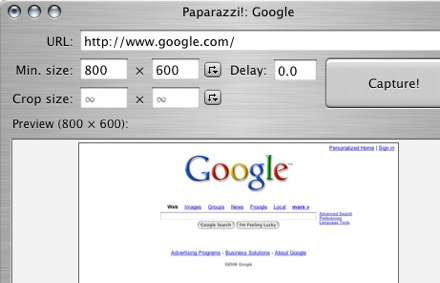
Type a URL and click a button for full page snaps. http://derailer.org/paparazzi/
Unlike Screengrab!, Paparazzi! is not dependent on the Firefox browser. In fact, all you have to do in this stand-alone utility is type in a URL and it will load in the full web page for capture. Toggle the cut dimensions for custom-size images and save to your place of choice. Saving screen shots is its main function thus it has a limited feature set. Dragging a URL to the app is also a handy way to activate Paparazzi!
- Editing/Notation: no
- Public Sharing: no
- Personalization/Cataloging: no
- Full Web Page Snaps: yes
- iSight Integration: no
- Companion iPhone App: no
- Browser Plugin Available: no, standalone utility
- Cost: FREE, donations encouraged
Web Snapper
Export multiple pages to PDF with links included. http://www.tastyapps.com/
Web Snapper is where things start to get interesting. Like Paparazzi! simply drag a web page to the app or use the handy Safari plugin to capture pages and load them in the stand-alone utility. The magic of Web Snapper lies in its ability to bundle multiple web pages and bind them together with scalable vector graphics via PDF. What is even more magical is that the page links are automatically embedded into the PDF.
- Editing/Notation: no
- Public Sharing: no
- Personalization/Cataloging: no
- Full Web Page Snaps: yes
- iSight Integration: no
- Companion iPhone App: no
- Browser Plugin Available: yes, Safari
- Cost: $15 or 5 day FREE trial
Skitch

Quick and easy way to snap, add notation and share. http://skitch.com/
With Skitch, things really start to get interesting. The biggest downer about Skitch is that it doesn't capture full web pages. That's a small thing to ask for considering it does so much else. The main reason I would use Skitch would be to add quick annotation to screen grabs for sharing. Pat Reagan wrote a couple of great posts about how to sync your Skitches with TextMate for easy blog posting. I used his instructions to write this post. What's more, Skitch offers public sharing of images through Skitch.com, Flickr, MobileMe or FTP and the iSight integration can be very useful for capturing whiteboard notes when you don't have a camera handy.
- Editing/Notation: yes
- Public Sharing: yes, Skitch.com, Flickr, MobileMe, & FTP/SFTP
- Personalization/Cataloging: yes, integrates with iPhoto
- Full Web Page Snaps: no
- iSight Integration: yes
- Companion iPhone App: no, though you can email from iPhone to Skitch.com or Twitter
- Browser Plugin Available: no, but menu bar and keyboard shortcuts are available
- Cost: FREE
LittleSnapper
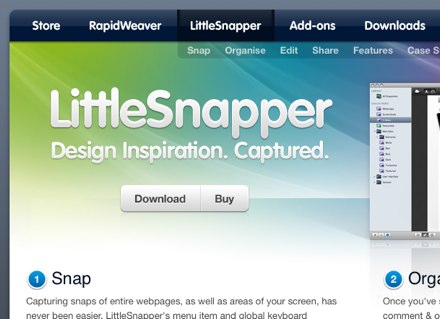
DOM-friendly snapping with built-in browser. http://www.realmacsoftware.com/littlesnapper/
LittleSnapper is the main inspiration for this post. I started using it as a way to catalog inspirational web sites according to my own personal likes. Like Skitch, I can hook it directly with my Flickr account for easy sharing and to post to our Viget Inspiration Group. LittleSnapper also hooks directly to QuickSnapper.com, their community web site for sharing screen shots. That is hardly all, this powerful app does so much more. It has a built-in browser for DOM friendly snapping and its tagging features allow for easy creation of smart collections. Annotate with elegant controls and use a blur filter if you want to obscure personal information. It helps that this application is as gorgeous as it is easy-to-use thus drawing comparisons to iPhoto. It's a little costly, but if you already make a habit of saving screens for future use you'll want to take a close look at LittleSnapper.
- Editing/Notation: yes
- Public Sharing: yes, via QuickSnapper.com, Flickr, MobileMe, & FTP/SFTP
- Personalization/Cataloging: yes
- Full Web Page Snaps: yes
- iSight Integration: no
- Companion iPhone App: yes
- Browser Plugin Available: No, but menu bar and keyboard shortcuts are available
- Cost: $39 or FREE up to 30 saved images
Evernote
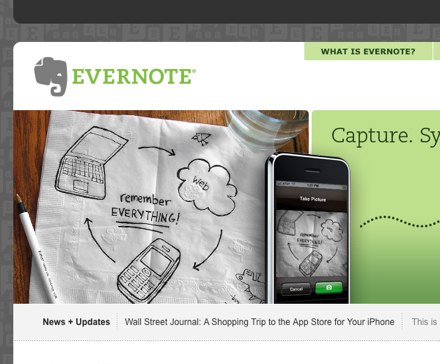
Snap a picture with text and retrieve it via search. http://evernote.com/
More of a note-snapping tool than a page capturing tool but loaded with amazing features the most impressive being that it scans images for searchable text. A downside is that it captures web pages as text and images rather than a WYSIWYG image like the other apps. This is useful for searching and note taking but it makes Evernote less of a screen capturing tool. That being said, Skitch becomes a great companion to Evernote in that you can drag and drop screens into Evernote for tagging and organizing similar to LittleSnapper. Also, the ability to share publicly via Evernote is built seamlessly into the workflow.
- Editing/Notation: notes not images
- Public Sharing: yes, Evernote.com
- Personalization/Cataloging: yes
- Full Web Page Snaps: no
- iSight Integration: yes
- Companion iPhone App: yes
- Browser Plugin Available: yes, Safari & FF plus menubar and keyboard shortcuts
- Cost: $5/month or $45/year or FREE up to 40MB/month
All in all, each of these apps have their own unique and powerful usages. I'm partial to LittleSnapper due to it being a sexy application with a ton of useful features. The fact that I already own the license helps considerably. If you are looking to save a little coin, try using Skitch and discover the great feature set offered. Evernote will win over the inner-geek in you with its jaw-dropping capabilities. Regardless of which you choose, get snapping!


