Save For Web, Simply
Since "The Mysterious Save For Web Color Shift," I've received 200 comments and weekly emails about the theory. Thanks to readers, I've learned a lot about the original issue, and (perhaps, more importantly) how to explain it.
TO RECAP: In the post, I suggested dumping some of Photoshop's color management settings (by choosing your monitor profile in Color Settings) and saving without ICC profiles. These settings make it hard to predict how your final colors will appear on the web, or even between browsers. The strongest responses pointed out that, in fact, ICC profiles are awesome, and they do a great service for photographers and illustrators who want to faithfully present their colors. I countered that from a practical web-design standpoint these profiles do more harm than good — and, well, things just kept going and going for a while.
I wanted to post a follow-up consolidating all knowledge on the subject and declaring my Lofty And Supreme Rightness (and perhaps immediately turning off comments, thus securing said Rightness), but the emails we've received have led me in a different direction. Most referenced difficulty applying the settings, testing them, or even understanding the original mechanics of the problem.
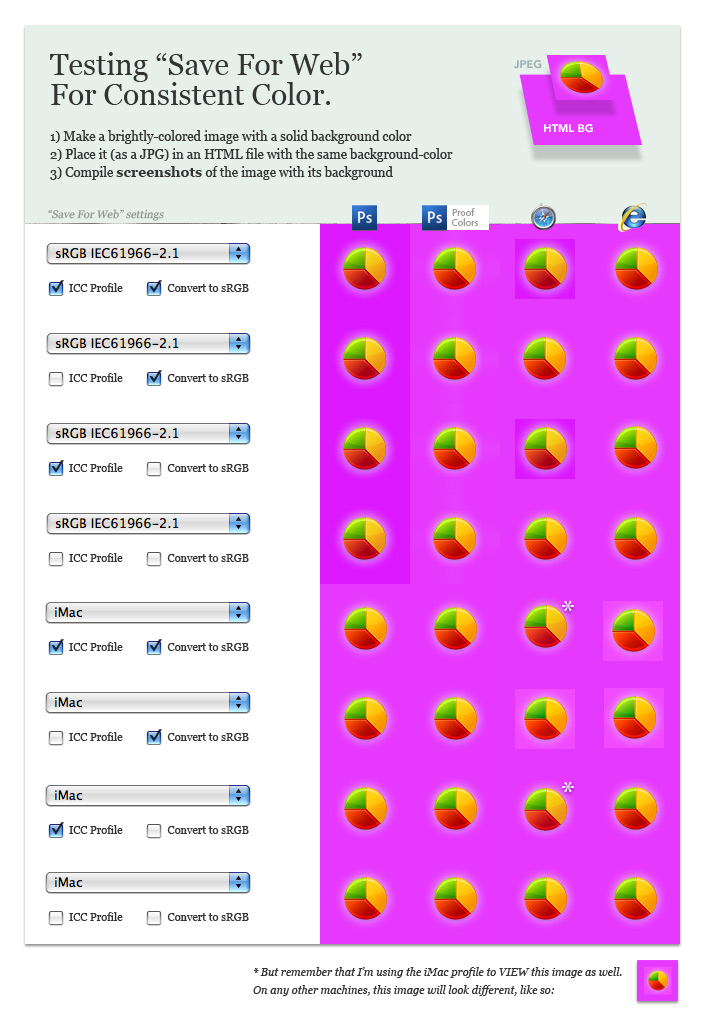
In writing my responses, I found myself testing more and explaining less, trying to show a simple list of results to clarify the problem. I started sending PSDs for readers to poke around with, then refining these into a single chart. The chart attempts to explain what differences the settings make, and what their advantages/drawbacks might be.
The Variables
I worked with mixes of the three settings I discussed in the original post: ICC Profile (which embeds your color profile in the image, and is only available on JPGs in CS3), Convert to sRGB, and the color profiles themselves. By default, CS3 had Convert and ICC options checked when I installed, but this may have changed in CS4 (let me know if you've tried it!). The left side of the grid shows settings I used, and the right side shows screenshots of the results from various contexts. "Proof Colors" means setting "View > Proof Setup > Monitor RGB" to use as a color preview.
On Embedding Profiles
Embedding ICC profiles shows a "true" copy of the original colors, but only in profile-aware apps like Safari and FF 3.5. As you can see in the first row, this shift won't apply to any CSS-set backgrounds or borders around the image. In a lot of cases, this doesn't matter, but when it matters it's a huge pain to work around. This is the main reason web designers might want to leave profiles out of images that need to match browser colors.
As you can see in the Safari column on Rows 5 and 7, sometimes an embedded profile might look perfect on one machine, but not on another. The two purples match locally because my calibrated view matches the embedded profile exactly — but on my neighbor's machine (see the footer), this won't be the case.
On Converting to sRGB
Converting to sRGB did nothing on the first 4 rows (they were being edited in sRGB to begin with, so it makes sense), but it didn't play so nice with my iMac profile. This setting doesn't seem too useful: Either it works but you don't need it, or it does more harm than good.
On Editing in sRGB vs. Monitor Profile
This comes down to a matter of taste. As you can see, Row 4 produced great, predictable results as long as you remember to turn on Color Proofing while you're viewing things (and in CS3, it's off by default every time you start Photoshop). This indicates that sRGB is workable, you just need to be careful that you understand what you're seeing.
I still prefer the monitor profile (Row 8), it simplifies the entire process and makes my results even more predictable. It also might makes things easier if you're in a hurry and need to mix screenshots into a comp without the colors mis-matching.
So Do I Just Dump Color Profiles?
Well, no. The truth is that color profiles allow users (with profile-aware applications) to see your original, intended image — with all the range, depth, and subtleties you labored over in Photoshop. This makes them perfect for photographs, which stand alone (away from backgrounds, borders, etc) and aren't expected to meld with the design the way structural images are. For photo editing, I still use the sRGB space and save my images with embedded profiles. This ensures that they'll be as close as possible to the standard color space for browsers and they'll be strong, better images in Firefox 3.5, Safari, and other apps that can correctly interpret ICC profiles.
Thanks to everyone who wrote in over the past year and helped us puzzle this out. Please let me know if you'd like the original files, or would like any other examples added to the chart. Hopefully, most designers should be able to play with each method and see what works best for them.
Hi, thank you for this complete review. I checked my settings since I never noticed such trouble before.
I always set Photoshop to use “Adobe Web Europe” settings, when working on a file I set the proof setting to “Monitor color” and never noticed any color shift with the default “Save for Web” settings (convert to sRGB active).
Since the Adobe Web profile set the RGB working space to sRGB IEC61966-2.1 it seems to make sense to me.
I might be wrong and would gladly test it further. If you could send me your pie chart I’ll check this and report my findings.
The options names are loosely translated from french and might not exactly match the english version.
Do the way you create screenshorts (and their color profile) have any thing to do with the result of your chart?
Awesome work Doug! Thanks. One thing to note is that ICC profiles don’t apply to PNGs or GIFs; as far as I know. Can anyone clarify this? They can only be applied to JPGs, like in your example.
So if you are saving images as GIF, PNG-8 or PNG-24, and you want them to be seamless with an html color, they should match every time. But if you are saving JPGs and you want them to be seamless with an html color, dump the profile.
@Fabrice it looks like your findings match mine, so long as you stay in the “Color Proof” view. I find this a little tiresome, since it means turning it on every time I open a file, but this might be fixed in CS4 (not sure).
@Tor Yes and no - I believe the screenshot method (basic OS X screenshot) shows color as interpreted by the monitor profile, but since all color is being interpreted by this profile, it should give us enough of a baseline to use for comparing/contrasting results.
@Jeremy according to what I’ve read, profiles are supported in PNGs, GIFs, JPGs, TIFs, and many other formats. In other tests I’ve done, I’ve seen these changes appear in profile-aware apps like Safari, but I should look again to make sure.
Thanks for the link Doug. I didn’t know that ICC profiles were supported in file formats other than JPG. Mozilla is on top of things!
In Photoshop’s save for web dialogue box, there isn’t an ICC profile checkbox for PNG and GIF, so when saving to those formats, the profile doesn’t get embedded so you should be fine. At least until Adobe adds that feature; CS5 maybe?
@Jeremy can’t believe I never noticed that. Thanks for pointing it out.
Thanks you very much Doug!
Saw your article in my Rss reader and I ran into the save for web problem this afternoon on my new machine with CS3 installed.
A very mellow blue turned into a bright Cyan like blue when saved for web.
Anyway thanks a lot for your great article.
Interesting! Also, I think this might concern us people working on OSX esp. Snow Leopard: http://blogs.adobe.com/jnack/2009/09/why_your_web_content_will_look_darker.html
@Jeremy you can get PNGs with embeded profile using Save as function. PNGCrusher is an app for optimizing PNG filesize. http://www.versiontracker.com/dyn/moreinfo/macosx/26437
Greetings. I’ve been searching to solve my color issue and keep ending up back at this post and your previous one. I’m pretty sure I’ve read everything out there and tried all combinations—with no luck. In a nutshell, when I create an image with a specific hex color, and then save it as a JPG (both in ‘save for web’ and ‘save as’), the resulting image has a slightly different hex. This doesn’t seem to happen with ALL colors, and is more pronounced in some.
Anyone who has their color issues solved, please try this test.
1. Open a new file and fill the canvas with #b31b1b.
2. Use your best tried and tested saving as a JPG technique.
3. Open your new file and check out the hex color of your new image. Has it changed?
If you did a ‘save as’ and the file is still open, you’ll notice that the color is correct. However, if you close that file, and reopen it, the color has changed.
I’m using CS3 on a MacBook Pro, with sRGB IEC61966-2.1 as my color space. I have tried all variations with every setting in the ‘save for web and devices’ dialog box—including the stuff you get in the menus using the little triangles. This doesn’t happen with PNGs.
Anyone?
@Zac - was able to reproduce this, and I think we’ve had this pop up a few times over here. It looks like the brightness is being upped by 1, but that might just be an oversimplification of what’s happening.
I guess I count this as a tolerable shift, but it’s still really frustrating. Let me know if you make any progress on this!
@Zac - I did reproduced easily this indeed the jpg shifts to #b41b1b.
Might be Photoshop only but it might be more global. My guess is it is due to the jpeg compression algorithm, could someone try this with Fireworks ?
Thanks for all the research and public sharing.
I’ve done the steps you’ve discussed and found them to work in CS4/ac, but not in PS7/pc. (PS7 is my home machine, CS4 is in the office.)
Seems odd that the same set of configurations would produce different output.
Thankful for a solution, bummed by the inconsistency.
I’m a painter. I forward photos of my paintings as jpegs all the time from my Mac (10.4). I edit these photos first in Photoshop CS. FF 3.5 is my browser and gmail is my email account.
Like many of you, I have spent hours upon hours (sometimes longer than it takes to actually paint the paintings) trying to format these images so that they can be viewed as accurately as possible inside the commonly used browsers.
Since most of this screwing around seems pointless, my simple question (for my own sanity before I make my posts with some degree of confidence) is this:
Why does the image in the pop-up window (where you get to when you click on the thumbnail attachment) look so overly saturated and completely & embarrassingly off kilter? It seems that most of you have complained of washed out and dulled images, but my problem is the opposite.
Can anyone shed some light on this?
@Sally that’s interesting, you’re saying that the image that appears when you click “View” or a thumbnail seems to have shifted? Can you send me the file in question (doug(dot)avery(at)viget(dot)com)?
@Sally: I opened your image a few different ways to see the results: View the image.
The first image is what I saw in Photoshop using your embedded profile. This should be pretty close to how you saw it while editing.
The second image is what I saw in PS using my Monitor profile. Stuff is definitely brighter, richer, kinda weird.
The third image is in my Firefox, which has colors profiles disabled (which I did myself at some point). You’ll see that this looks just as bright as it did in Image 2.
The fourth image is from Safari, which always faithfully shows ICC profiles. Image 4 is identical in color to image 1.
So I have two answers for you:
1) It seems like your shift has the same issue as ours - you’re editing in a color profile but viewing it in a browser that’s not profile-aware.
2) HOWEVER, FF3.5 should supposedly be profile-aware, and thus shouldn’t be giving you this problem. Some threads I found seem to point to this as a known bug, which might be fixed if you upgrade to a more recent build.
I’ve found the same issues while working on web, app and iPhone interface development. I went down a similar path and did loads of testing.
The real issue is that Photoshop tries to stomp color profiling all over everything it touches. Other image editing apps tend not to do this and also tend not to have issues.
I’ve written an article for Smashing Mag that explains my setup:
http://www.smashingmagazine.com/2009/10/12/setting-up-photoshop-for-web-app-and-iphone-development/
(I hope you don’t mind the link.)
I agree completely regarding saving photos with profiles. They’re very different to user interface or web design and should be treated differently.
It’s also worth noting that there’s still a lot of browsers that have strange or poor color profile support. We not in a situation where you can rely on things acting the way you’d assume. The ultimate would be to have a color profile as a meta tag for your site, so that the entire site could be corrected as one… so you don’t have to worry about each image.
Next entry: Palm Pre WebOS Apps: My First Look
Previous entry: Give And Take: Rails Rumble 2009

Recent Comments
@brad
It makes little difference when using native EE functionality or Structure to add pages, it’s just that if you want to add a sub page, you need to remember to assign a...
- Hambo on 'A Whole New Wooooorld: Structure + ExpressionEngine'.
- brad on 'A Whole New Wooooorld: Structure + ExpressionEngine'.
- Doug Avery on 'A Whole New Wooooorld: Structure + ExpressionEngine'.
Subscribe to Comments RSS